Case study by Yana Yeromina · 2021 to 2025

Manufacturing
Execution System

Enterprise UX for industrial-grade software: operator-centric tools that bridge the shop floor and ERP systems for a global manufacturing leader.

Enterprise UX B2B / Industrial Web Application Design System Figma · Sketch SKF Group
Manufacturing Execution System for SKF
Role
UX Lead
Duration
3 yrs 7 mo
Team
3 designers
Coverage
5 teams / apps
Client
SKF Group
Tools
Figma · Sketch

The Manufacturing Execution System (MES) bridges ERP systems and the shop floor, giving factories worldwide real-time visibility and control over production.

SKF MES is operator-centric: factory workers get the tools and information they need to work efficiently, accurately and without friction. Across a 3+ year engagement, I led the UX effort spanning five interconnected products.

The goal: build a complete UX foundation (architecture, design system and cross-team alignment) for a mission-critical enterprise product with no initial UX structure.

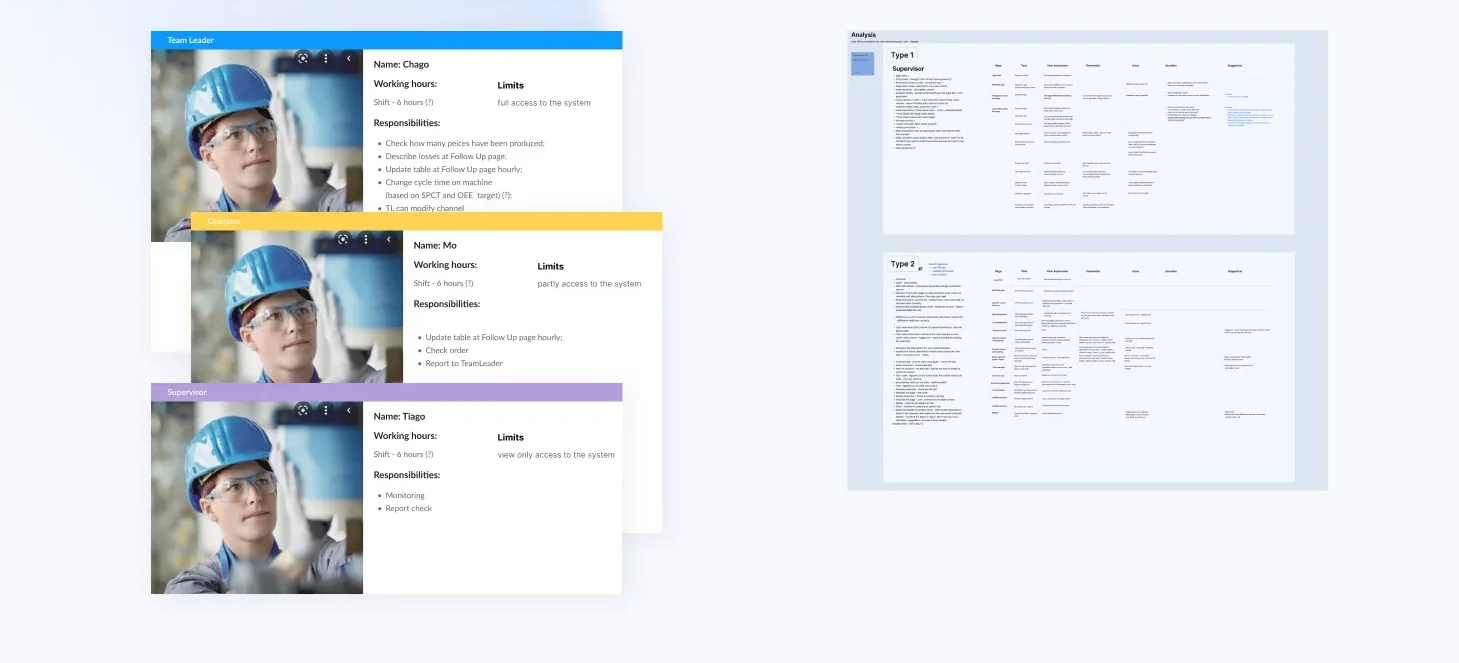
Operator Partial access

Updates the follow-up table every hour, checks orders and reports to the team leader. Works standing, gloved and under time pressure.

Team leader Full access

Checks how many pieces were produced, describes losses, updates the follow-up table hourly and changes cycle times.

Supervisor View only

Monitors production and checks reports.

What I was responsible for

  • Define the information architecture from the ground up
  • Conduct user interviews and factory-floor testing
  • Design and lead a cross-team design system
  • Manage a team of 3 designers across 5 products
  • Run a UX training programme for non-designers

Issue

Inefficient manufacturing execution processes and the lack of real-time visibility into operations were identified as causes of significant losses, delays and quality issues, and increased costs.

Goal

Implement a centralised system that integrates with existing manufacturing processes and provides real-time visibility and control over production.

When I joined, there was no UX foundation: no information architecture, no adopted design system and limited stakeholder alignment.

I led the effort to shape the product's structure, working closely with my team to define user flows and introduce clarity where none existed. This meant navigating ambiguity, facilitating stakeholder workshops and advocating for users in a complex enterprise environment.

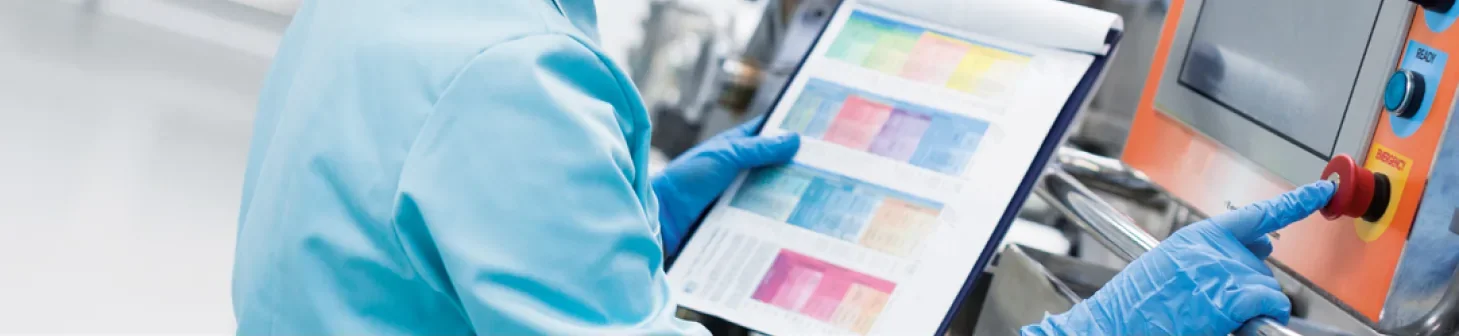
Operator in protective gloves checking a colour-coded production chart next to a machine control panel
The shop floor. Operators work standing, gloved and under time pressure.

Grounding decisions in real workflows, not stakeholder assumptions, was the most impactful shift we made.

Interviews and testing sessions with real operators and factory workers uncovered pain points, clarified needs and validated design decisions. The insights improved critical areas of the interface, especially where user needs diverged from initial business expectations.

Persona cards for Team Leader, Operator and Supervisor, each with working hours, system access and responsibilities, next to an interview analysis board
Personas and interview analysis. Three roles with different access to the system, and what each one is responsible for.

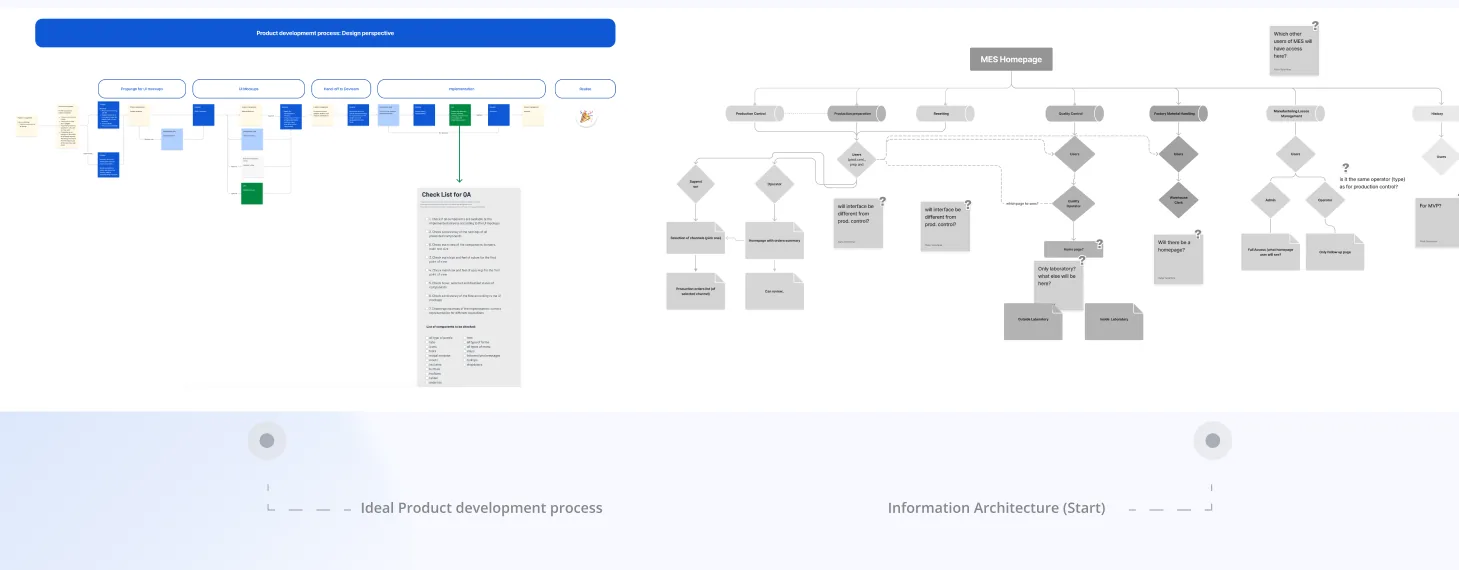
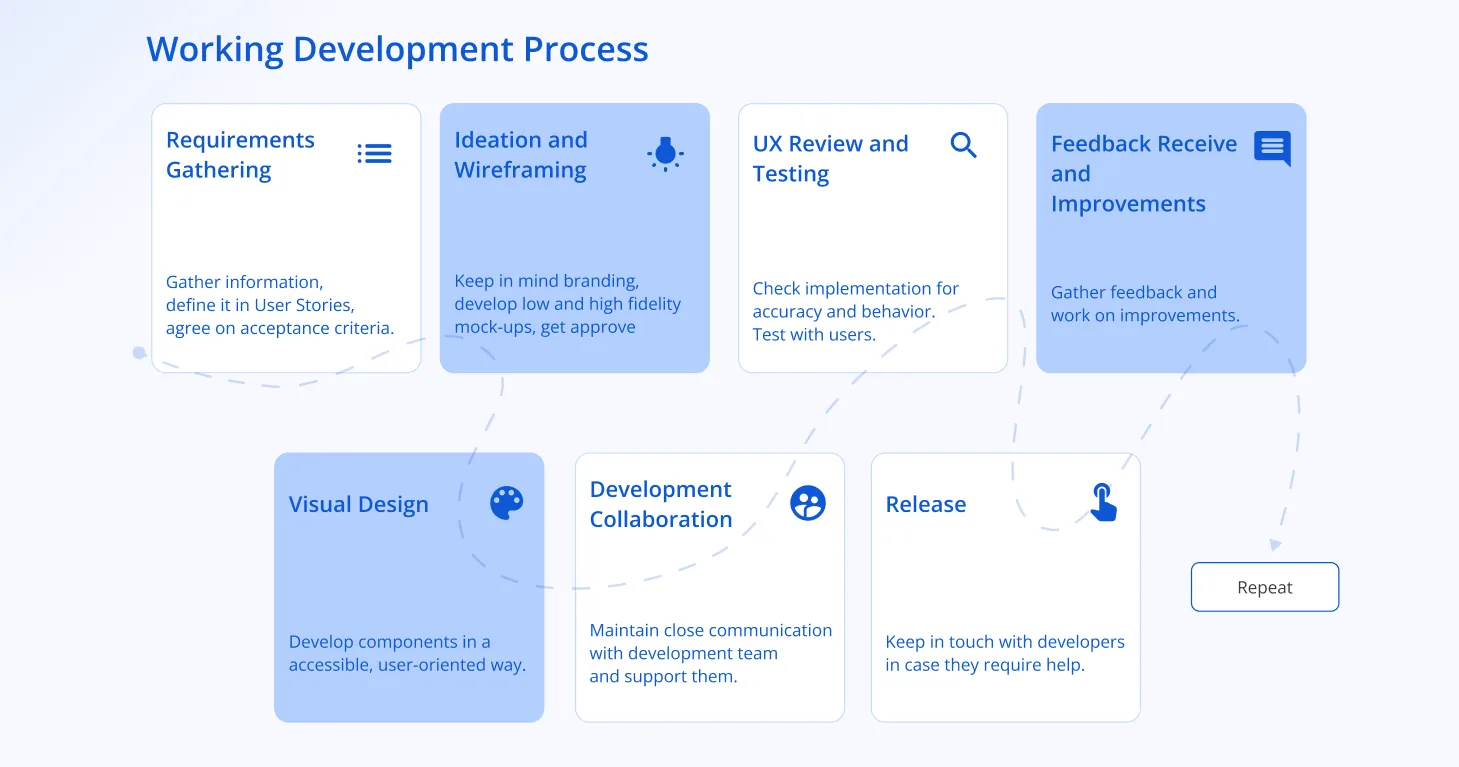
We established a structured development process, from requirements gathering and ideation through visual design, development collaboration and release. In parallel, we tackled the complexity of the information architecture through iterative exploration, until user needs and business goals lined up.

Product development process
Development workflow. From requirements to release.
Information architecture and flow
Information architecture. Built iteratively from first principles.
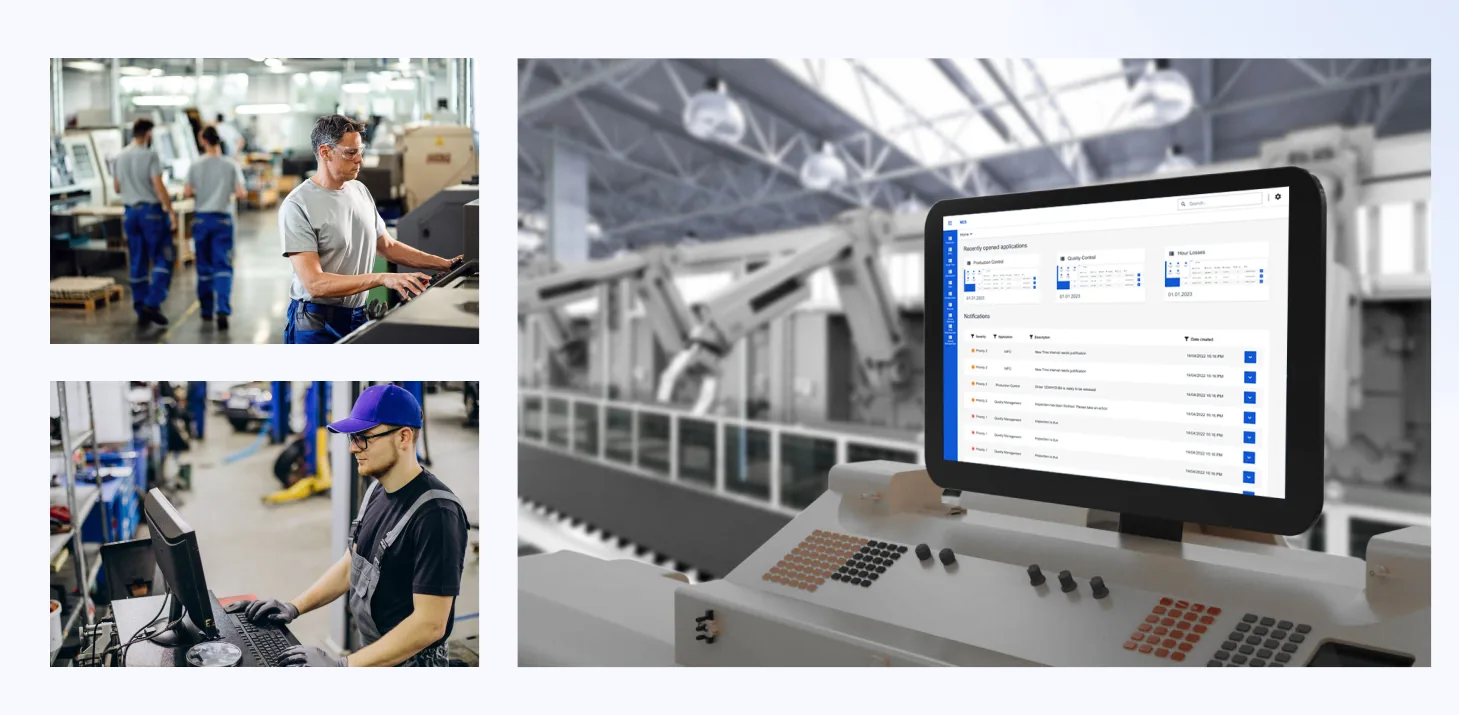
MES in use on the factory floor
In the field. MES deployed in SKF factories.

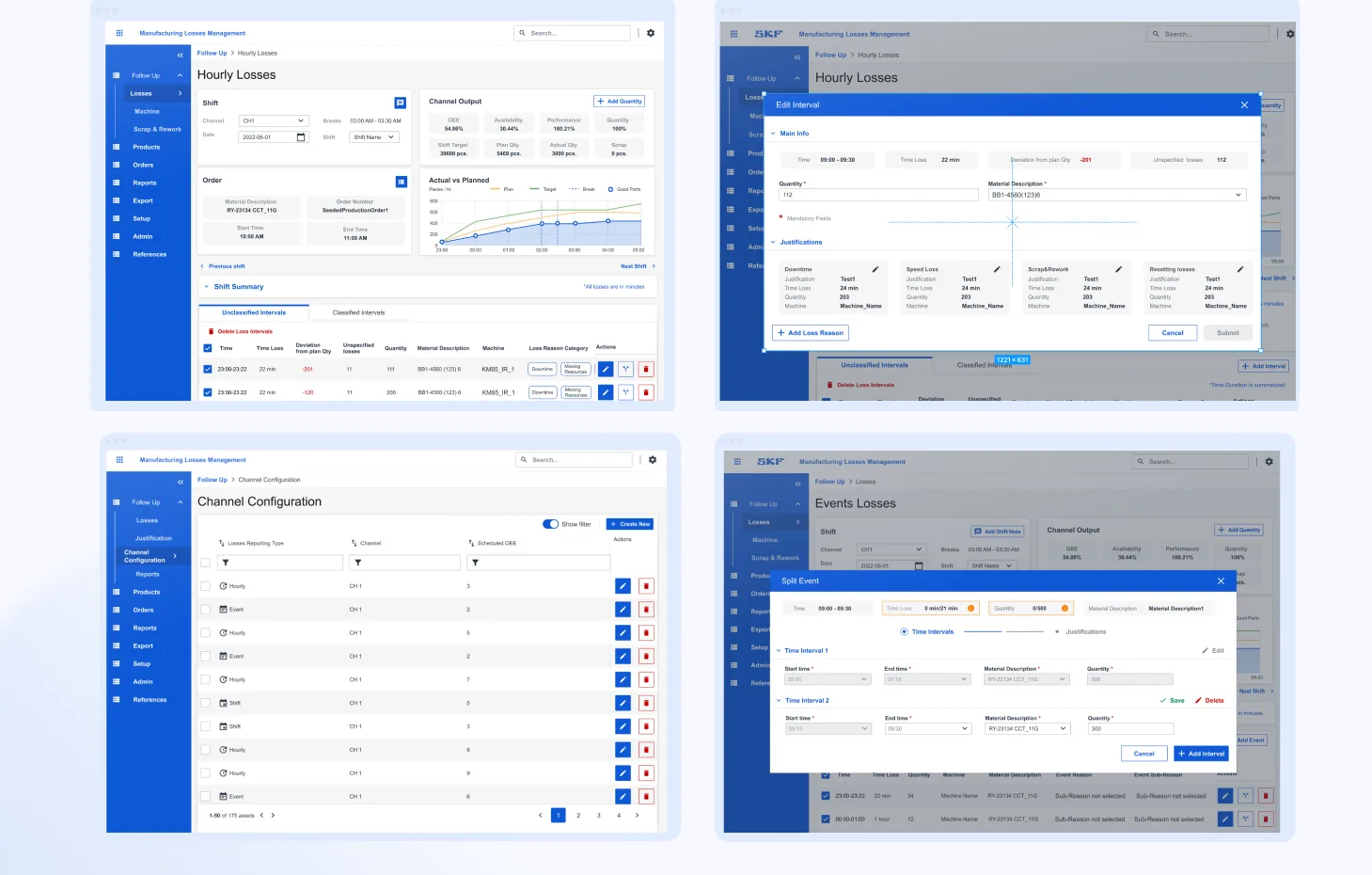
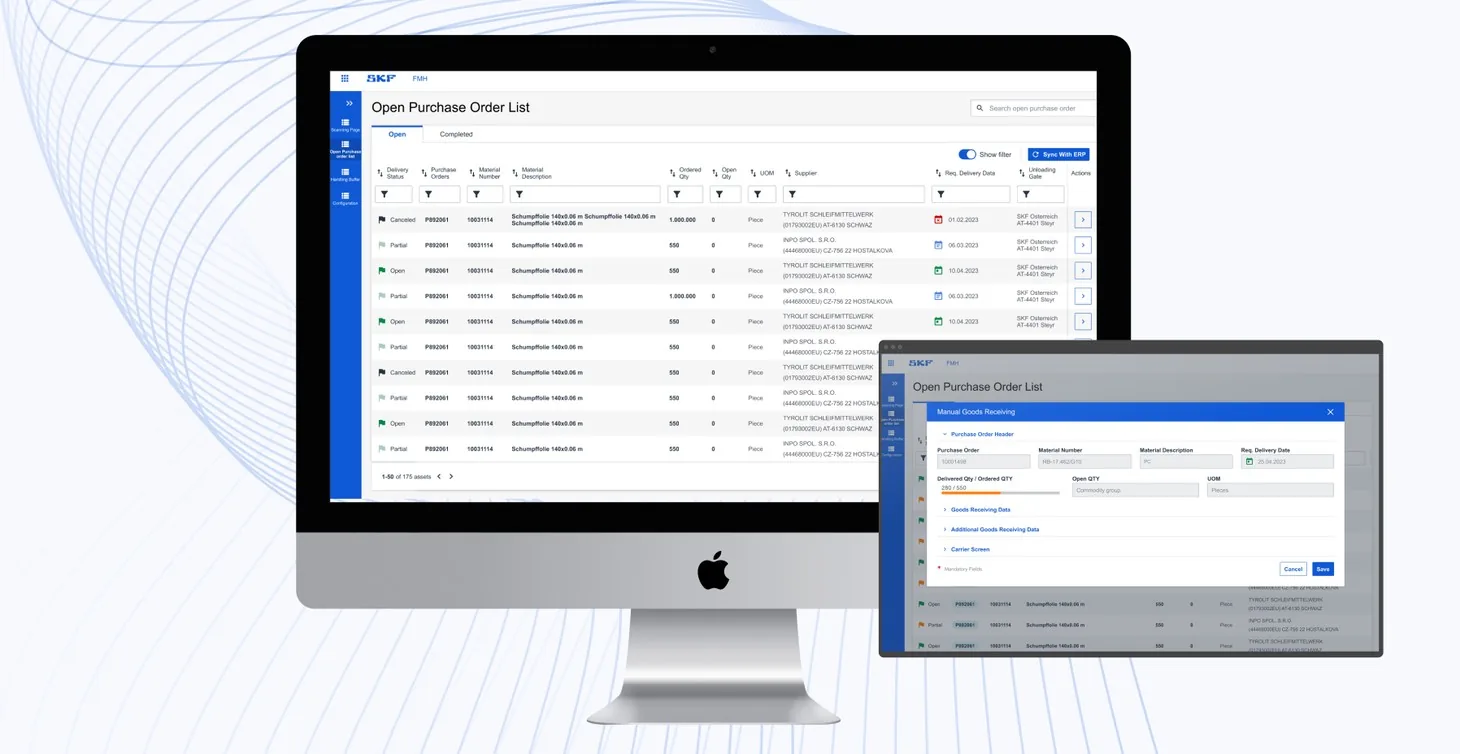
Six of the modules developed and deployed to factories around the world. Each one is shown with its key decisions marked on the screen.

Module 1 · Production control

Run every order from one table

A centralised interface for shop floor activities: production orders in interactive tables, with the actions for each stage of the process. Users create and release orders, confirm produced quantities, declare scrap or rework and track progress in real time.

  1. Orders by stage. Planned, in process and completed orders sit in their own tabs.
  2. Progress at a glance. A status flag and a progress bar on every row.
  3. Actions on the row. Start or hold production without leaving the list.
  4. The next step stands out. Inside an order, the main action is the one bright button.
  5. Everything for the order, one tap away. Consume, quality inspection, comments and declaration along the bottom.
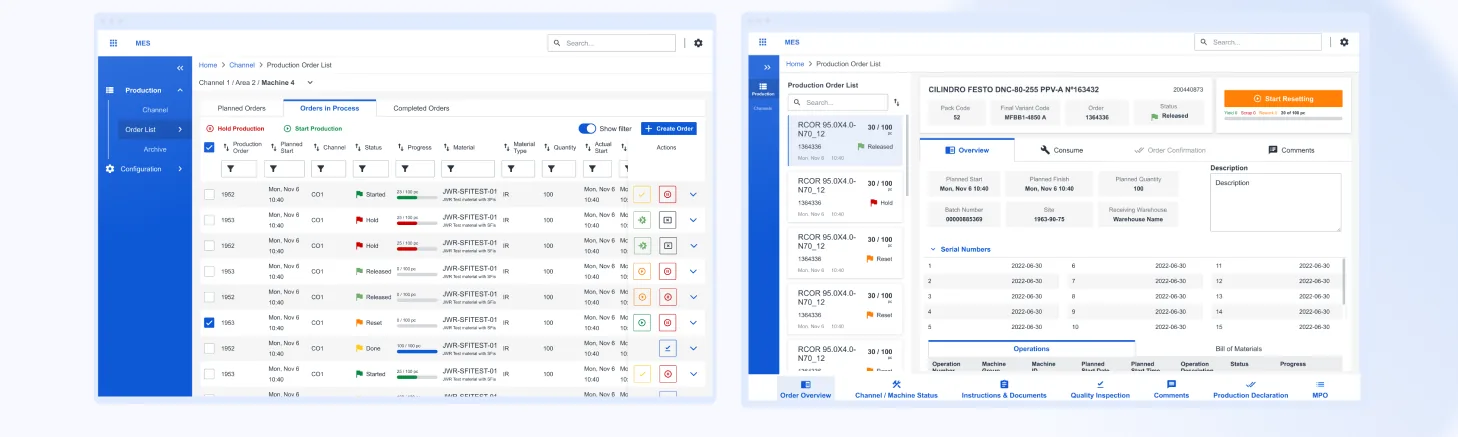
Production control: a production order list with tabs for planned, in-process and completed orders, status flags, progress bars and row actions, next to an order detail view with a Start Resetting button and a bottom bar of tasks
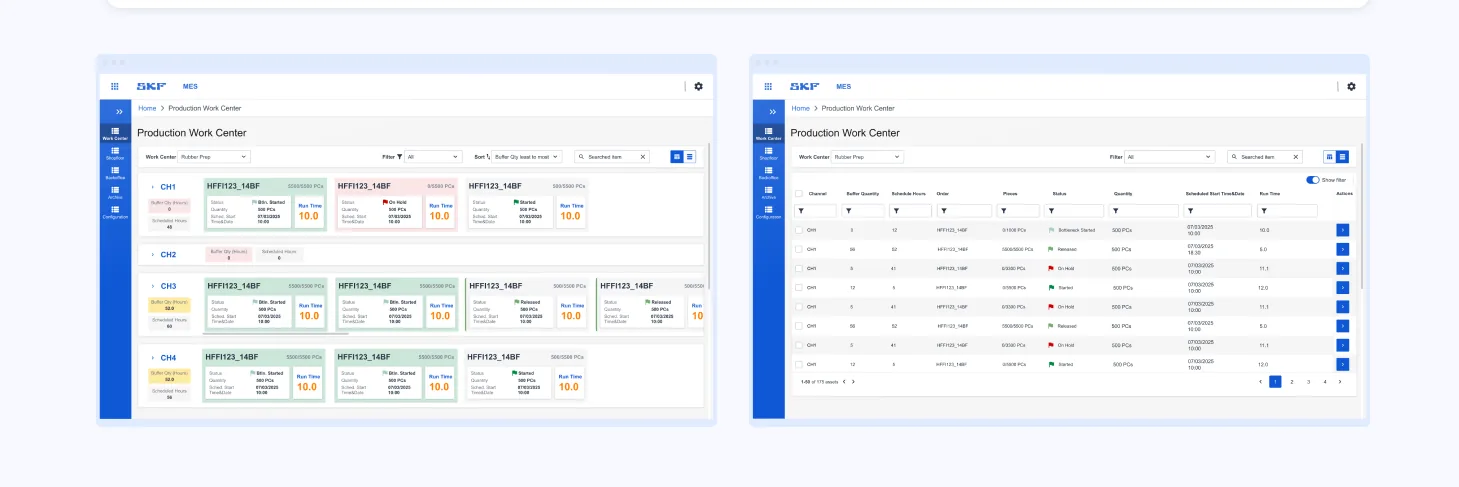
Module 2 · Work center

See every channel and its orders at once

A real-time overview of production channels and their active orders in an area: order status, part quantity, scheduled start time, buffer quantity and runtime hours. Colour-coded statuses make prioritising quick.

  1. One row per channel. Each channel's active orders line up beside it.
  2. Status by colour. Started, on hold and released read before the text does.
  3. Runtime stands out. The number operators check most is the largest on the card.
  4. Cards or table. One switch, top right, changes the view.
  5. The same data, denser. The table view suits supervisors scanning many orders.
Production work center in two views: channels CH1 to CH4 as rows of colour-coded order cards with large runtime numbers, and the same orders as a filterable table
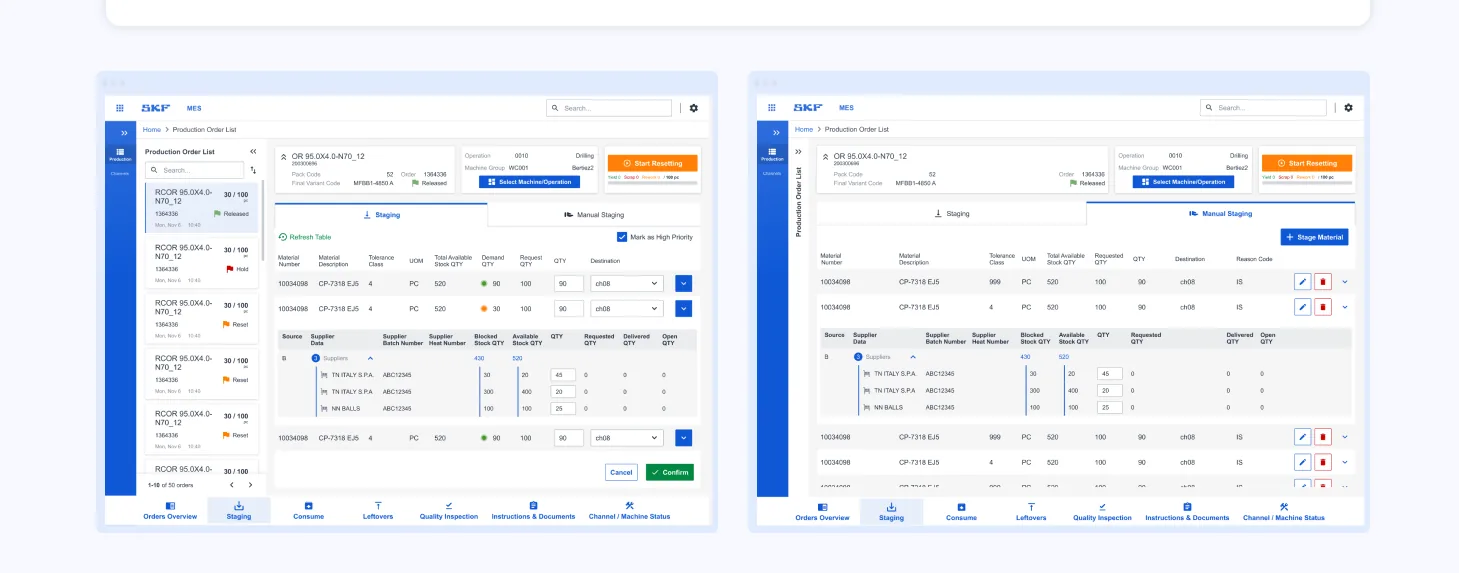
Module 3 · Material staging

The right material, at the right place and time

A detailed overview of material staging: material numbers, descriptions, tolerance classes, demand and request quantities, and available stock. Users manage stock from several suppliers and allocate quantities by batch and heat number.

  1. The order stays in view. The production order list sits beside the staging table.
  2. Two ways to stage. Automatic staging, or manual staging when the floor needs it.
  3. Demand against stock. Requested quantities next to what is available, with a status dot.
  4. Pick by supplier and batch. Expand a material to allocate across suppliers, batch and heat numbers.
  5. Priority in one tick. Urgent staging is marked as high priority.
Material staging: a production order list on the left, staging and manual staging tabs, a table of materials with demand, available stock and requested quantities, an expanded row allocating stock across suppliers, and a Mark as High Priority checkbox
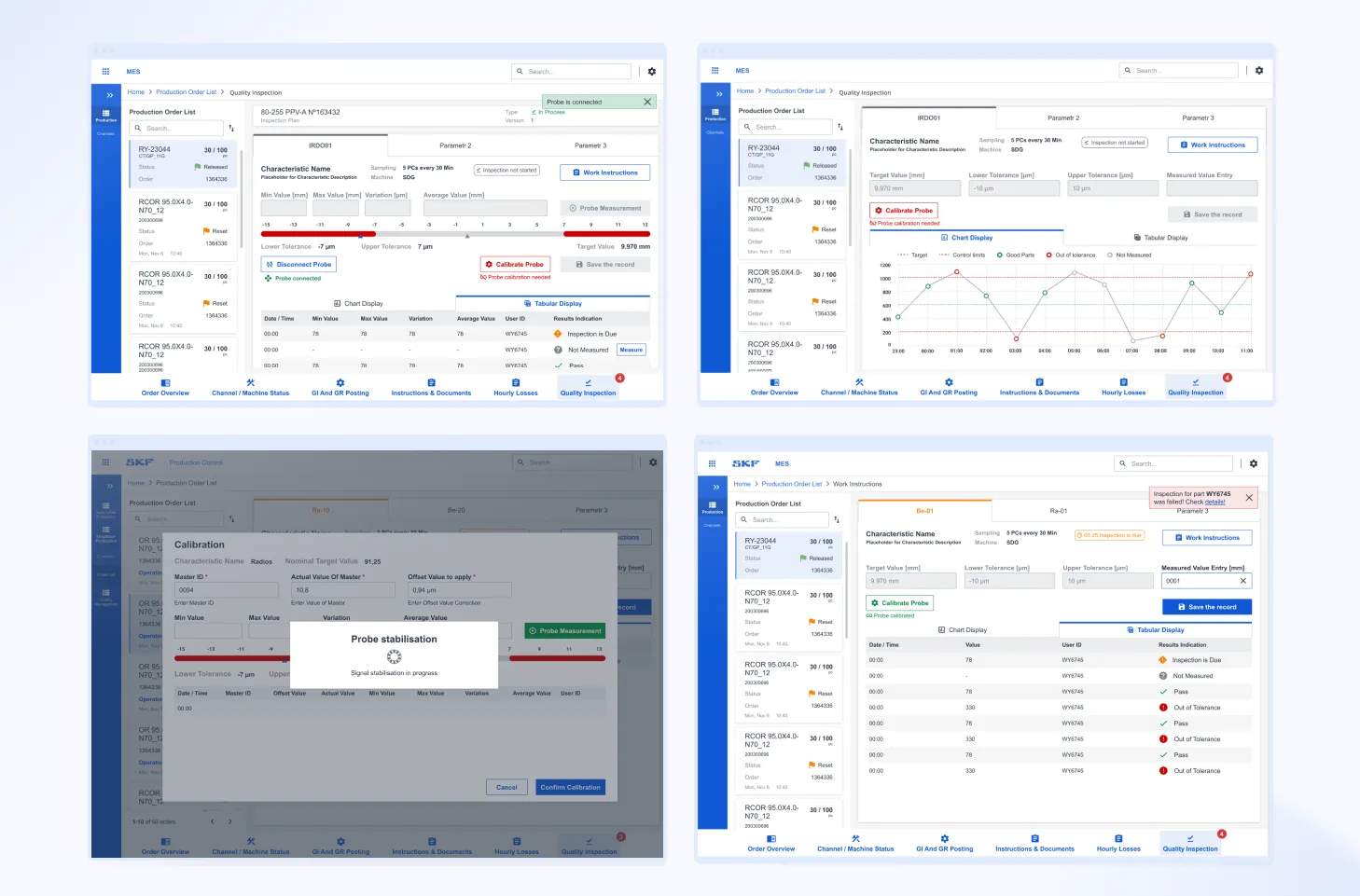
Module 4 · Quality inspection

Catch deviations while they are still small

Systematic checks that production meets its standards: verifying tool calibration, sampling produced pieces, recording measured values and updating inspection status. Deviations show up early, and every step stays traceable.

  1. One tab per characteristic. Each measured parameter has its own view.
  2. Tolerance at a glance. The measured value sits on a scale between its lower and upper limits.
  3. Calibrate before measuring. The probe warns when it needs calibration.
  4. The trend, not just the number. A chart of measurements against control limits.
  5. Every result labelled. Pass, out of tolerance and not measured, each with its own icon.
Quality inspection in four screens: characteristic tabs with a tolerance scale and a probe calibration warning, a chart of measured values against control limits, a calibration dialog, and a results table marking pass and out of tolerance
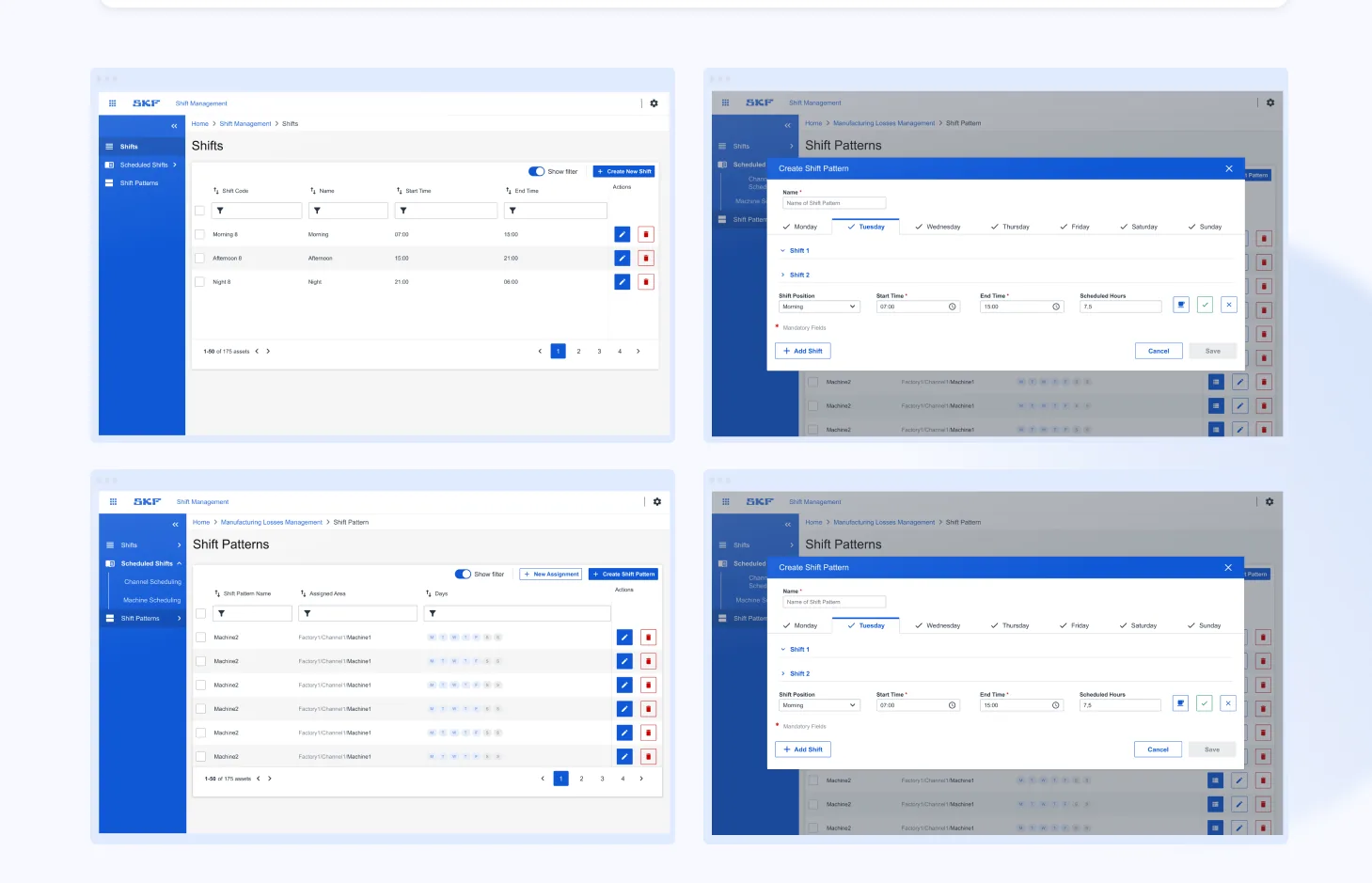
Module 5 · Shifts

Plan the workforce around production

Tools to create and edit shift schedules, adjust working hours, add breaks and define recurring shift patterns. Shift changes run smoothly and scheduling conflicts drop.

  1. Shifts in one list. Morning, afternoon and night, each with its own times.
  2. A pattern per weekday. Each day of the week can follow its own pattern.
  3. Times and hours together. Start, end and scheduled hours for every shift.
  4. Add another shift. A day can hold as many shifts as production needs.
  5. Patterns on machines. Patterns are assigned to areas and machines.
Shift management in four screens: a shifts list, a Create Shift Pattern dialog with weekday tabs, shift times and scheduled hours, and a list of shift patterns assigned to machines
Module 6 · Performance & losses (MPO)

Turn lost minutes into reasons

A clear view of production performance: losses and their root causes, such as scrap, rework or equipment downtime, logged in real time. Key metrics including OEE, and actual against planned output, show where to improve.

  1. OEE first. Availability, performance and quality sit at the top of every shift.
  2. Actual against plan. A chart of produced pieces against the target.
  3. Losses waiting for a reason. Unclassified intervals are listed until someone explains them.
  4. Justify a loss. Downtime, speed loss, scrap and rework each get a reason and a quantity.
  5. Reporting set per channel. Hourly, by event or by shift.
Manufacturing losses in four screens: hourly losses with OEE, availability, performance and quality, an actual versus planned chart and a table of unclassified intervals, an Edit Interval dialog with justifications, a channel configuration list, and a Split Event dialog

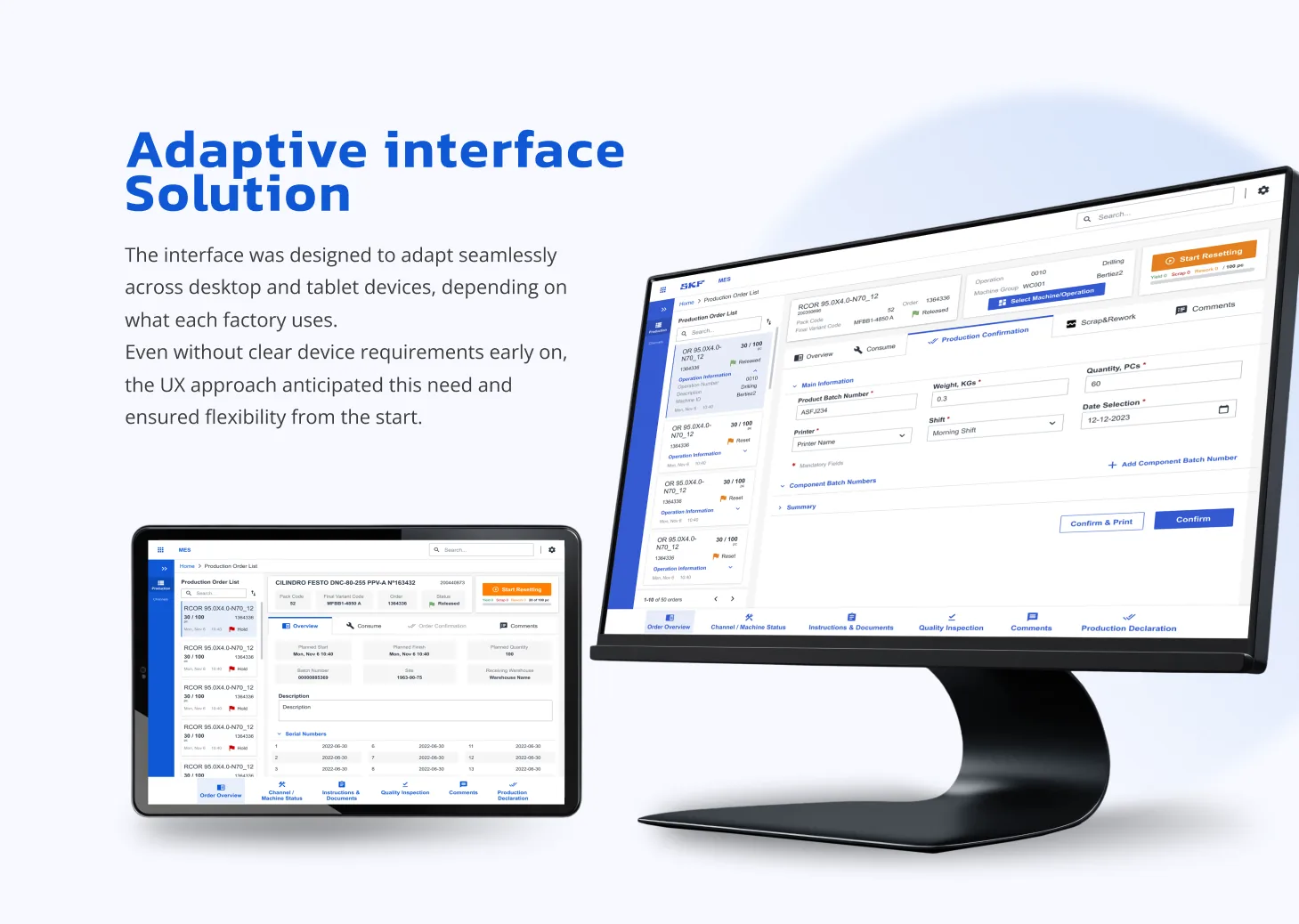
The interface was designed to adapt seamlessly across desktop and tablet devices, depending on what each factory uses. Even without clear device requirements early on, the UX approach anticipated this need and ensured flexibility from the start.

Responsive breakpoints and a flexible grid system made it possible to support different screen sizes without sacrificing usability. This was particularly important on the production floor where operators work at varying distances from their screens.

Adaptive interface on desktop and tablet
Adaptive layout. Desktop and tablet views for factory floor usage.

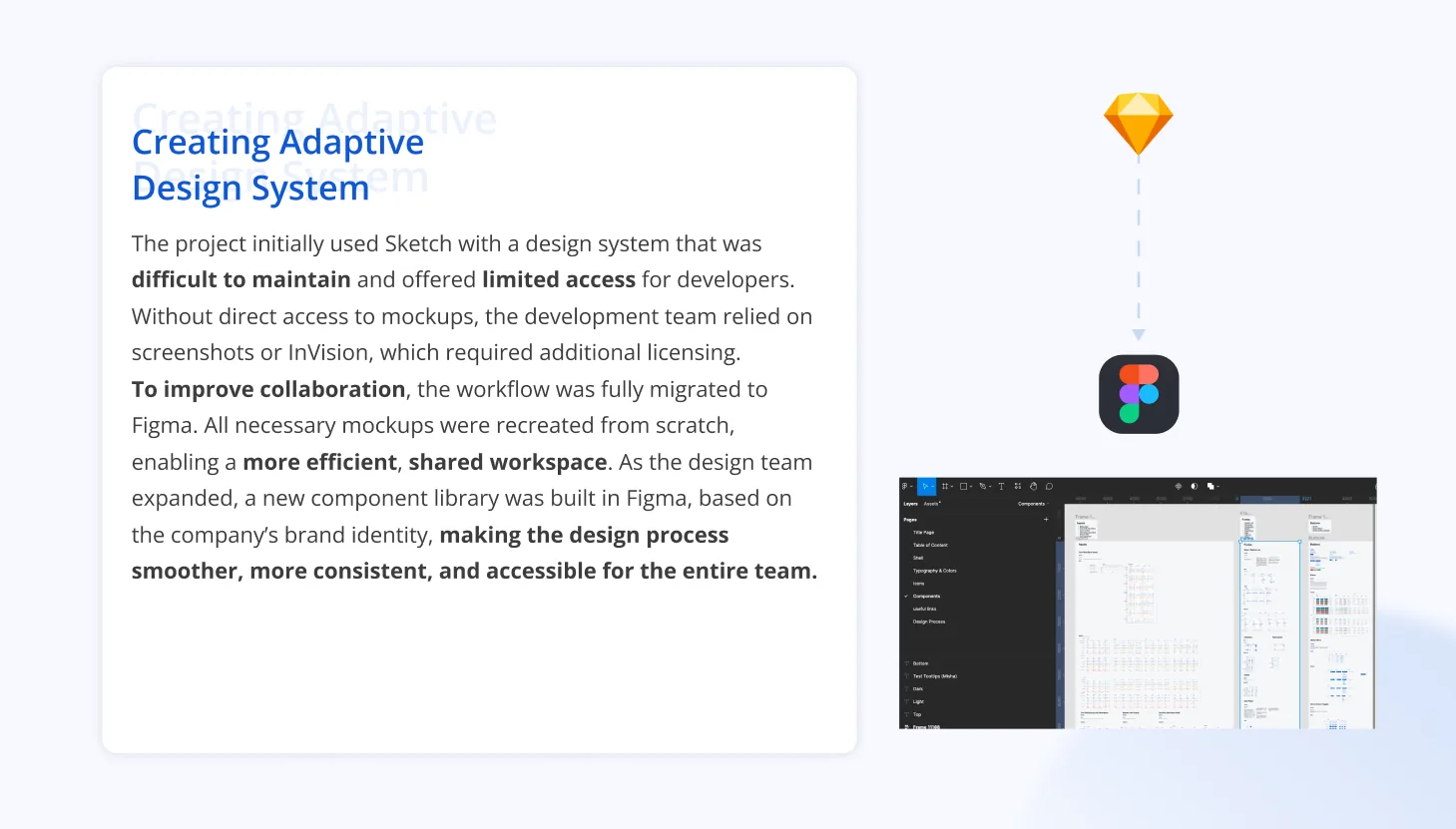
The project initially used Sketch with a design system that was difficult to maintain and offered limited access for developers. To improve collaboration, the entire workflow was migrated to Figma, with all mockups recreated from scratch, enabling a more efficient shared workspace.

As the design team expanded, a new component library was built in Figma based on the company's brand identity, making the design process smoother, more consistent, and accessible for the entire team across all five products.

Design system migration from Sketch to Figma
Design system. Component library and migration from Sketch to Figma.

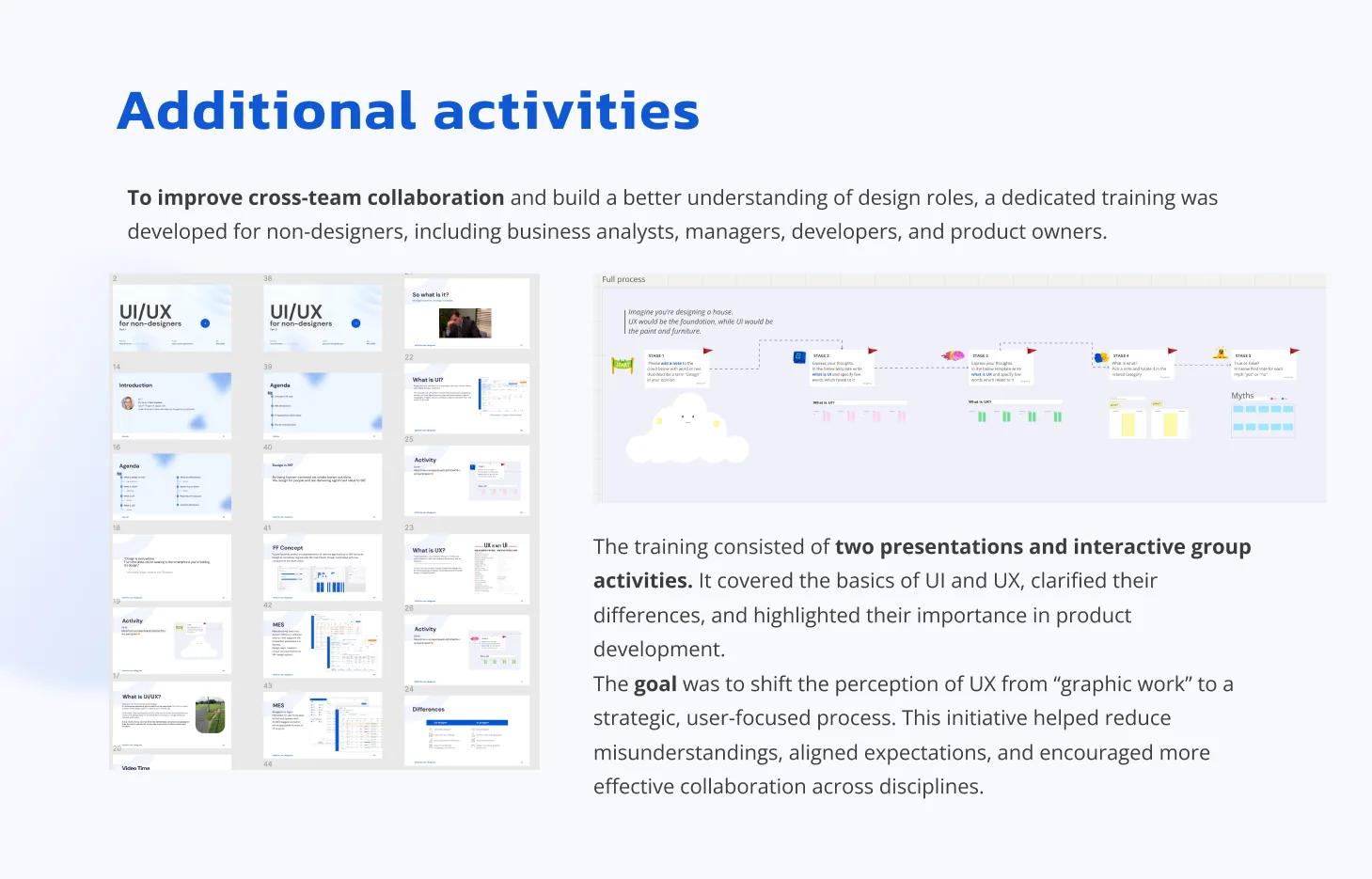
To improve cross-team collaboration, a dedicated UX training was developed for non-designers, including business analysts, managers, developers, and product owners. The training covered UI/UX fundamentals, clarified their differences, and highlighted their importance in product development.

The goal was to shift the perception of UX from "graphic work" to a strategic, user-focused process, reducing misunderstandings and building a shared design language across the entire product organisation.

UX training for non-designers
UX training for non-designers. Presentations and interactive group activities.

Leading this product journey from the ground up taught me how to bring structure where there is none, how to advocate for users in complex environments, and how to lead with both clarity and empathy. Over these three years, I grew not only as a designer but as a leader, learning to balance vision with constraints, guide a team through uncertainty, and build trust across disciplines. One of the most rewarding moments was hearing positive feedback from MES users. Knowing the product made their daily work easier is truly the most meaningful outcome of all.

01

Structure from ambiguity. Building a product from scratch with no initial requirements taught me how to create structure where there is none, defining information architecture through iterative exploration rather than waiting for clarity that may never come.

02

Designing for real operators. Direct contact with factory workers revealed that user needs frequently diverged from business assumptions. Grounding decisions in real workflows (not stakeholder expectations) was the most impactful thing we did.

03

Leading with clarity and empathy. Guiding a team of three designers across five products over three years required balancing vision with constraints, building trust across disciplines, and advocating for users in a complex enterprise environment.

04

Design as a shared language. Running UX training for non-designers was one of the most rewarding initiatives, reducing misunderstandings, aligning expectations, and making design a shared language across the entire product organisation.