Case study by Yana Yeromina · 2021

Sosivio
Platform

A Kubernetes observability platform that predicts failures before they reach users. I was the lead and only designer, from the first sketch to the shipped product.

B2B SaaS Kubernetes / DevOps Data-dense UI Design system Light and dark
Sosivio Cluster Overview: overall health 98%, health scores for platform, application and deployment, an AI-predicted failures chart plotting confidence against severity, counters for nodes, pods and namespaces, and a health-over-time bar chart
Role
Lead Product Designer
Year
2021
Scope
270+ screens, two themes
Status
Shipped

Kubernetes made running software easier and understanding it harder. Most monitoring tools tell a team something broke. Sosivio uses AI to say what is about to break, and what to do about it.

I designed the whole platform: brand, information architecture, every screen in light and dark, and the design system the developers built from. The challenge was density. The people using it are experts who want more data, not less, as long as the most urgent thing is always the easiest to find.

The goal: move a team from reacting to alerts to acting on predictions, in as few clicks as possible.

SRE or DevOps engineer on call

"What's about to break, and where?" Needs to spot a problem, find its cause and act on it fast.

Platform admin

"Who has access, and is everything connected?" Manages users, LDAP, licences and the platform's own health.

Engineering lead

"What is this cluster costing us?" Wants the savings the recommendations unlock, in money.

Before any screen, I mapped the product so the team agreed on what exists and how it connects. Navigation follows the way an engineer zooms in: from every cluster, to one cluster, to a single pod, and out again to act.

LoginInstallationthen the five areas below

Multi-cluster view

Every cluster
  • Cluster health list
  • Health over time
  • Add cluster
  • Admin approval
  • Remove cluster

Cluster overview

One cluster
  • Health scores
  • AI-predicted failures
  • Health over time
  • K8s components
  • Health checks

Live metrics

Pods, nodes, namespaces
  • Lists with live charts
  • Compare
  • Table and graphs
  • Entity detail
  • Data, real-time metrics
  • Network connections

Command center

Act
  • Recommended actions
  • Actions taken
  • Detected events
  • Optimisation and savings

Platform

Admin
  • Users and roles
  • LDAP
  • Licences
  • System version
  • Pipelines

Highlighted areas form the core loop, shown next

The heart of the product is a loop: notice a problem, understand it, find the cause, fix it. Here it is through four screens, following one unhealthy cluster.

Step 1 · Detect

Spot the unhealthy cluster in a second

Multi-cluster view puts every cluster in one list. One overall score per row is for scanning; three small gauges say which layer is failing.

  1. One score per cluster. Colour follows the health thresholds, so a red row stands out before you read it.
  2. Three layers. Application, deployment and platform gauges show where the problem sits.
  3. Expand in place. Health over time opens inside the row, so you never lose the list.
  4. The rules are visible. One click shows what healthy, warning and critical mean.
Multi-cluster view: a list of clusters with health scores of 98%, 43%, 22% and 98%, gauges for application, deployment and platform, the first row expanded to a health-over-time chart, and a legend popover showing healthy 81–100%, warning 51–80% and critical 0–50%
Step 2 · Investigate

See what the AI predicts, and how sure it is

Cluster overview leads with predicted failures. Each dot is a prediction, placed by how severe it would be and how confident the model is. The top-right corner is where to look first.

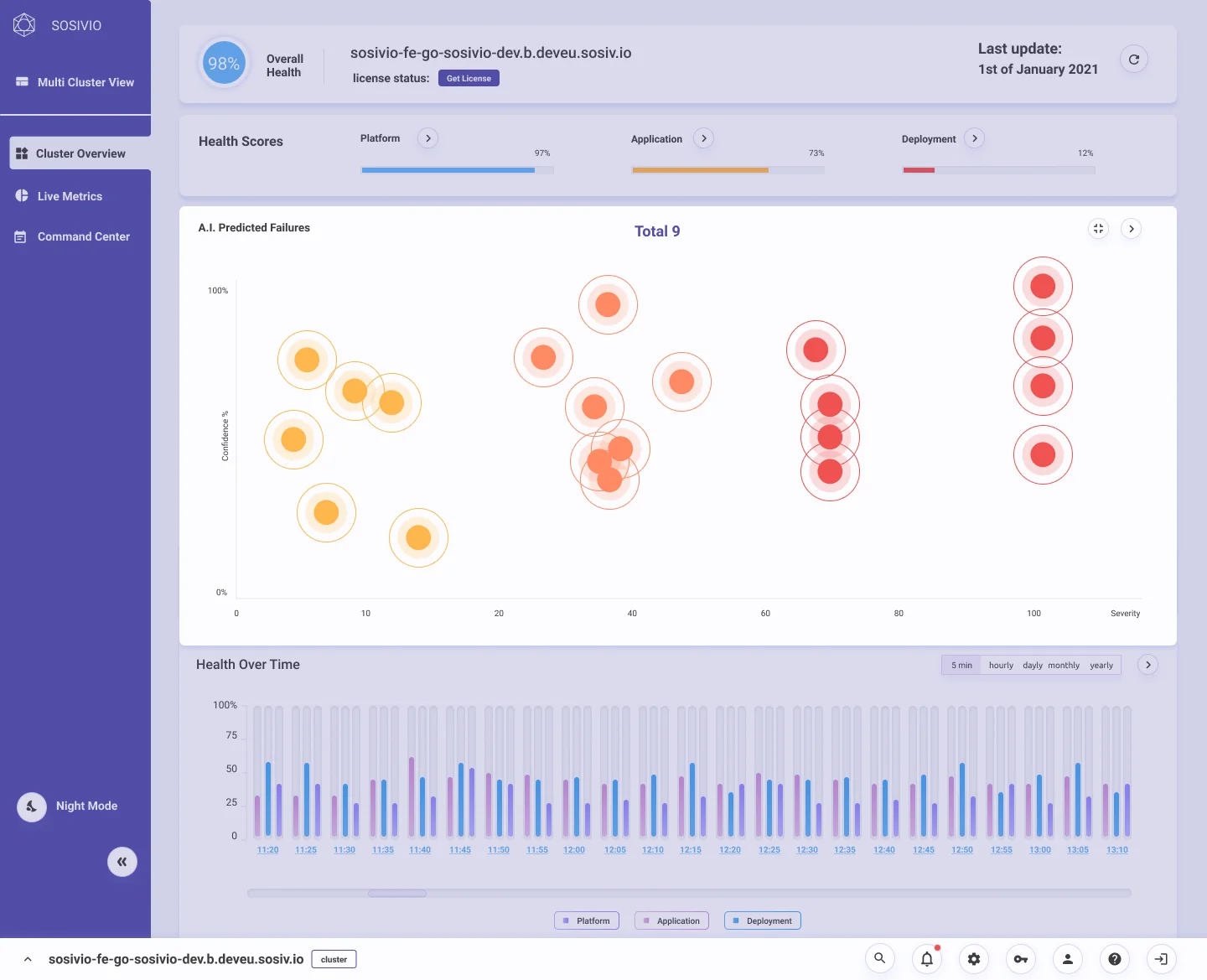
  1. Health scores in one row, so the prediction chart gets the full width.
  2. Confidence against severity. Two honest axes instead of a single opaque risk number.
  3. From dot to entity. Clicking a prediction names the failing entity and links straight to it.
Cluster overview: health scores as three bars, an AI-predicted failures chart with confidence on the vertical axis and severity on the horizontal, and a popover on one red prediction showing status Failure and a link to the entity Sosivio-Rc / Arangodb-0
Step 3 · Drill down

Find the cause in live metrics

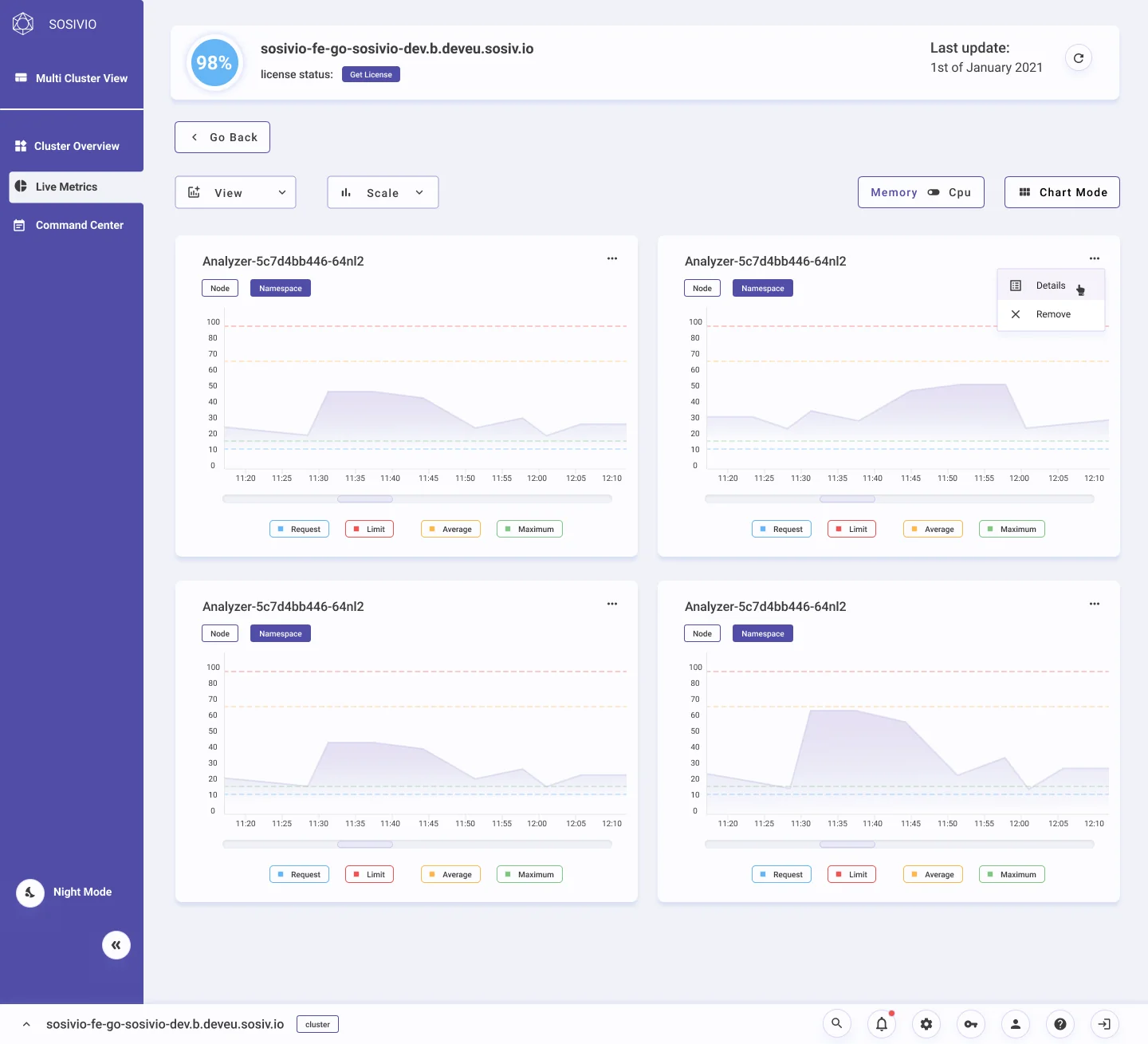
Live metrics lists pods, nodes and namespaces with their resource use. Each row carries a small live chart, so a spike shows up without opening anything.

  1. Requests against limits for memory and CPU, across the whole cluster.
  2. One table, three scopes. Pods, nodes and namespaces share the same layout.
  3. A live chart in every row shows the trend at a glance.
  4. Compare selected pods side by side in tables or graphs.
Live metrics: counters for pods, nodes and namespaces, KPI status bars for memory and CPU requests and limits, tabs for pods, nodes and namespaces, and a pod table with a real-time sparkline in each row and a Compare pods button
Compare view: four pods shown as area charts with request, limit, average and maximum lines
Compare. Pods side by side as graphs.
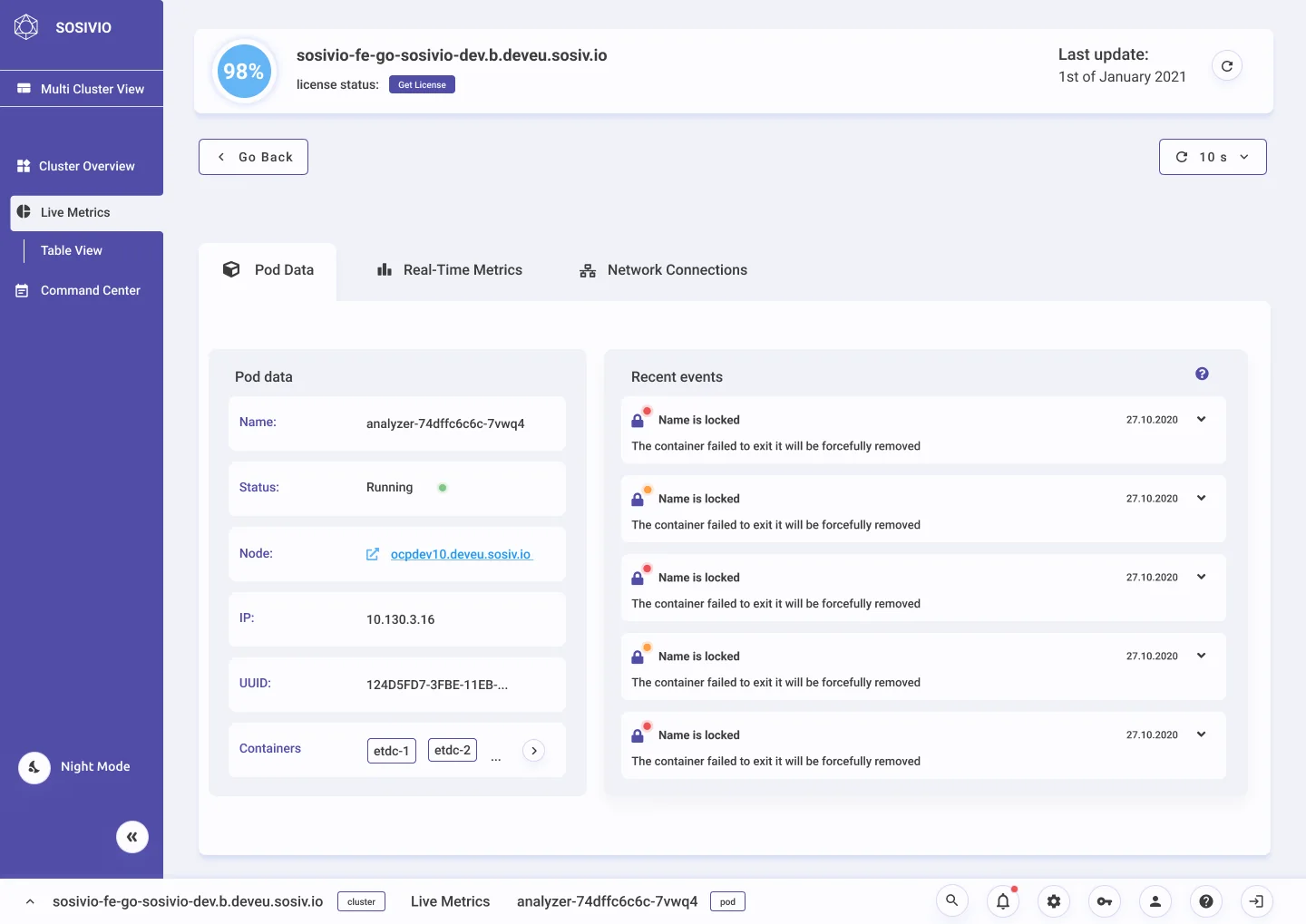
Pod detail, Pod data tab: name, status running, node, IP, UUID and containers, next to a list of recent events
Pod detail. Data and recent events.
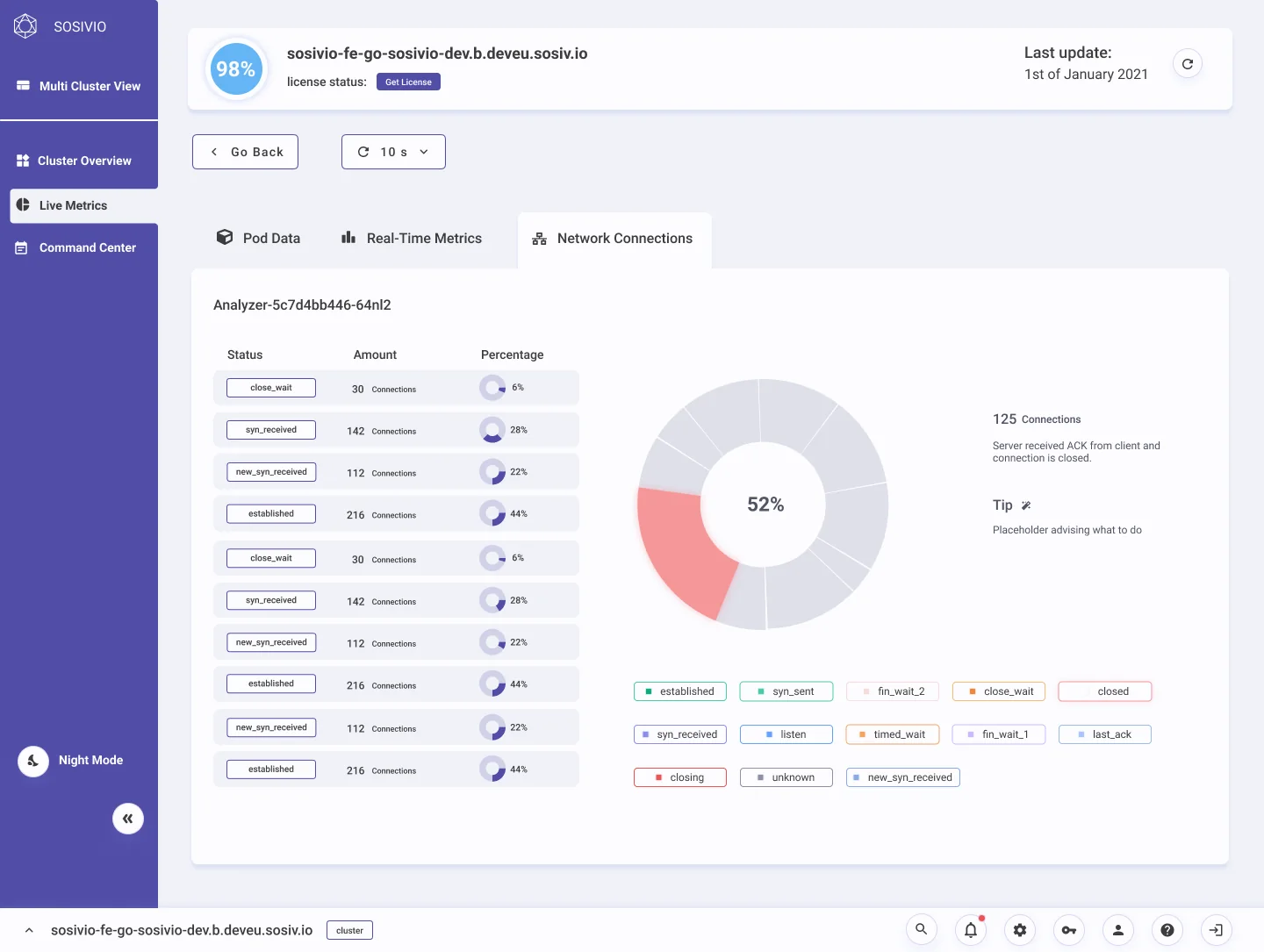
Pod detail, Network connections tab: connections by status with counts and percentages, and a donut chart
Network. Connection states at a glance.
Step 4 · Act

Fix it from one place

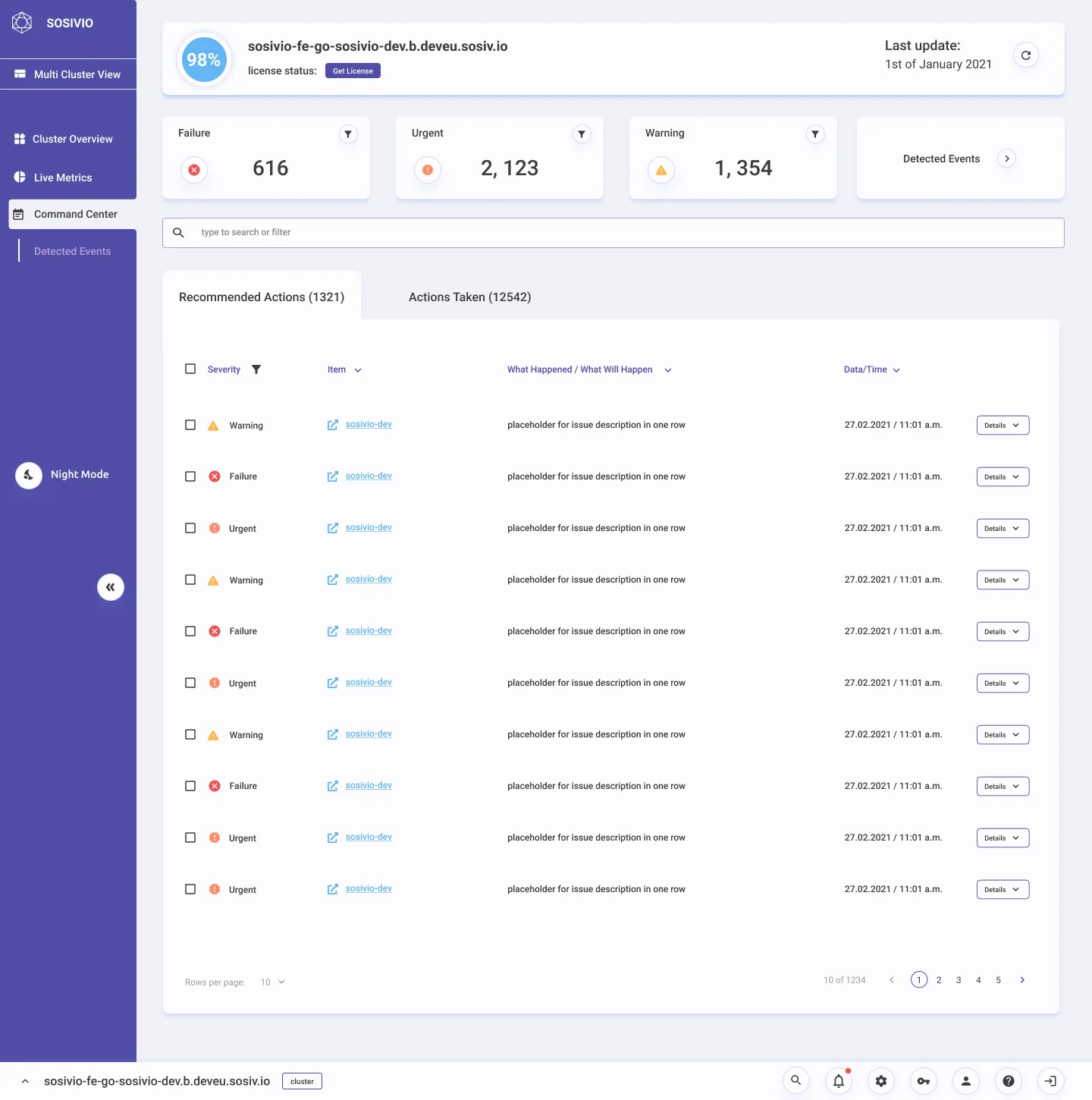
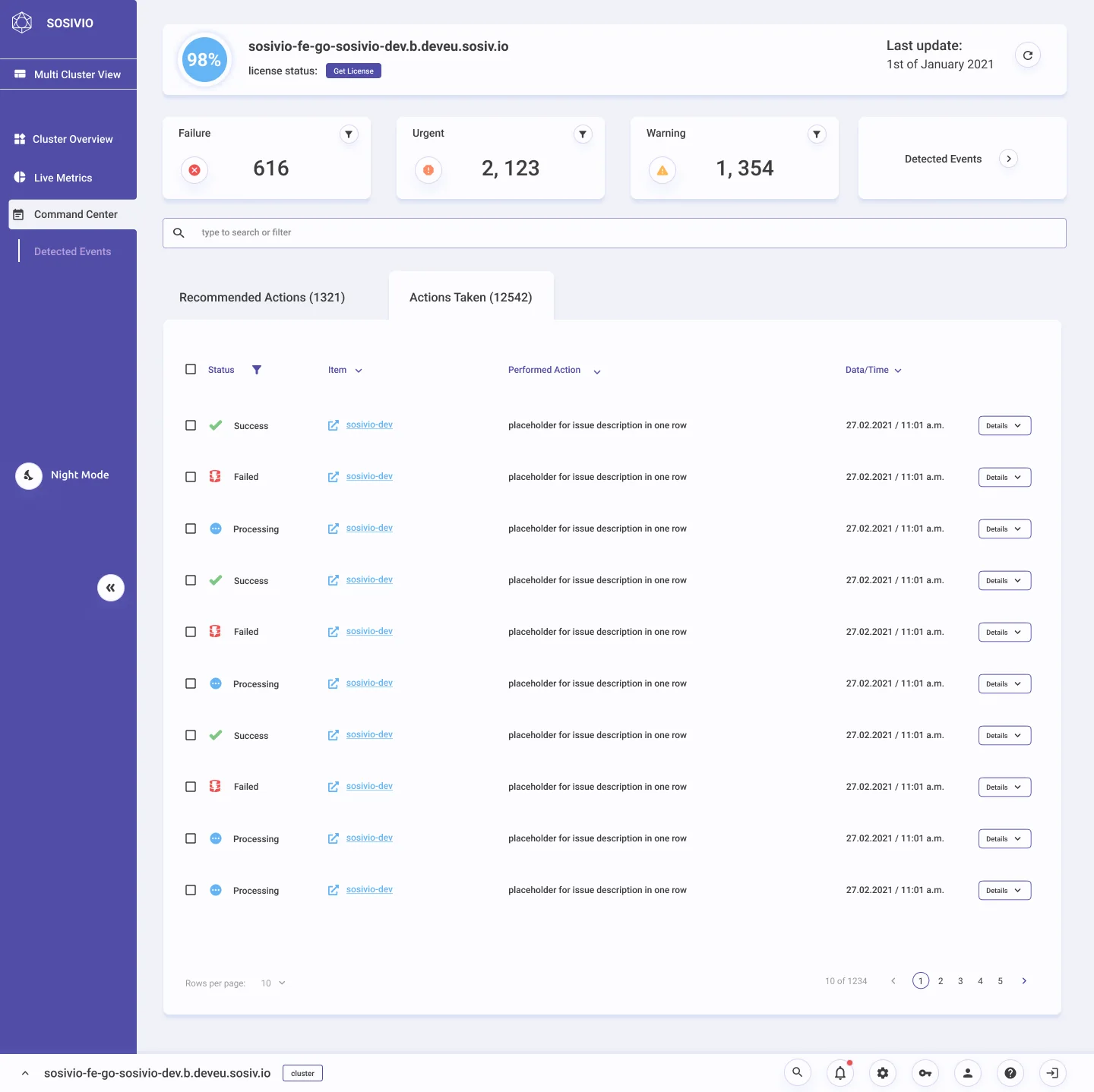
Command center turns predictions into a to-do list. Every recommendation says what happened or what will happen, and can be acted on from the row.

  1. Counters double as filters: failure, urgent and warning.
  2. Recommended and taken live side by side, so nothing gets done twice.
  3. Plain-language cause, past or predicted, for every item.
  4. Details and action open from the row.
Command center: counters for failure 616, urgent 2,123 and warning 1,354, tabs for recommended actions (1321) and actions taken (12542), and a table of items with severity, item, what happened or will happen, date and a Details button
Command center, Actions taken tab: performed actions with status success, failed or processing
Actions taken. Every action's result: success, failed or still processing.

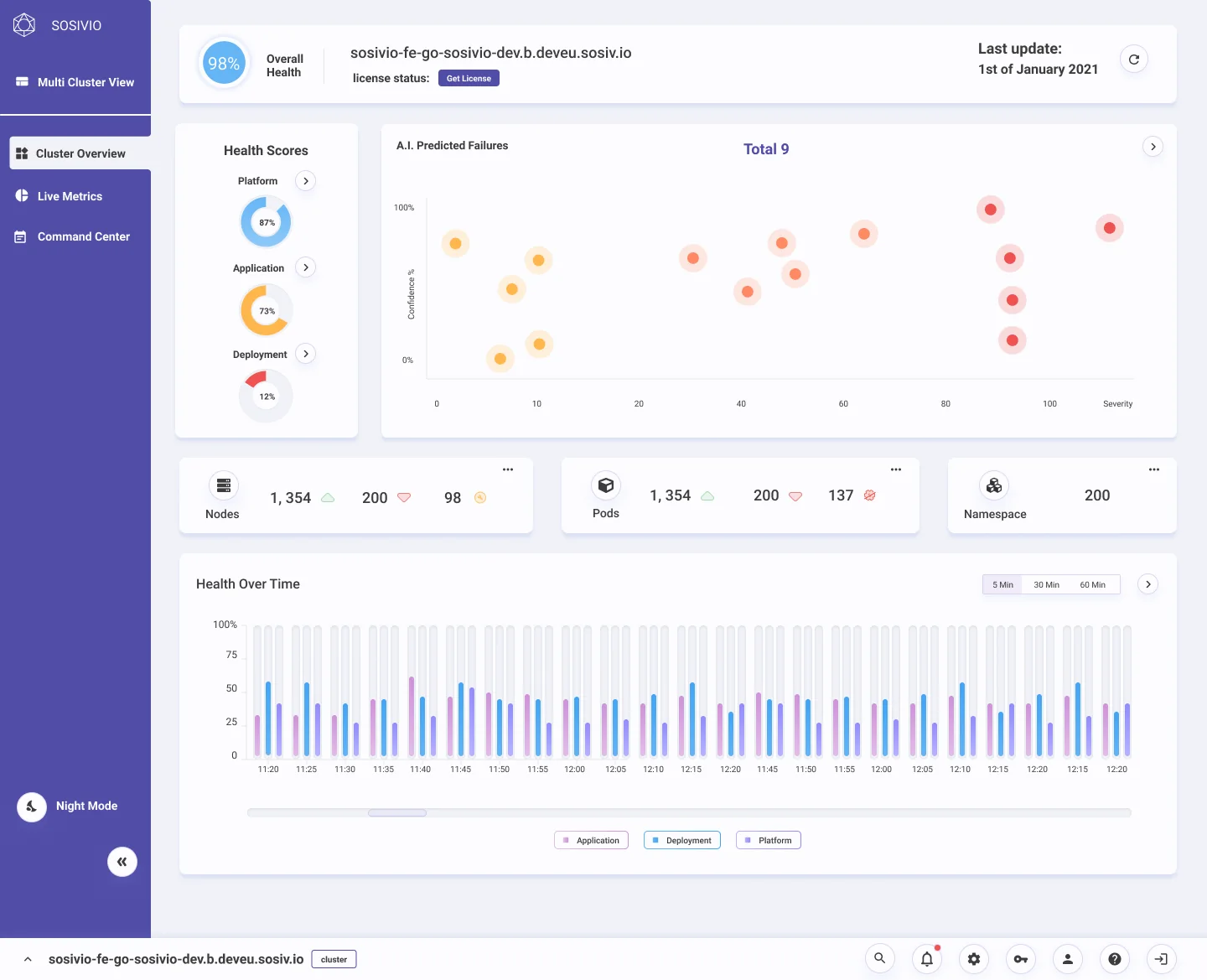
Predictions pile up in the same place: high severity, high confidence. That corner is exactly what an engineer needs to read, and it was the first to become unreadable.

I explored several ways to deal with overlapping predictions before settling on one. The layout around the chart changed too: health scores moved from a column of donuts into a single row of bars, which gave the chart the full width of the page.

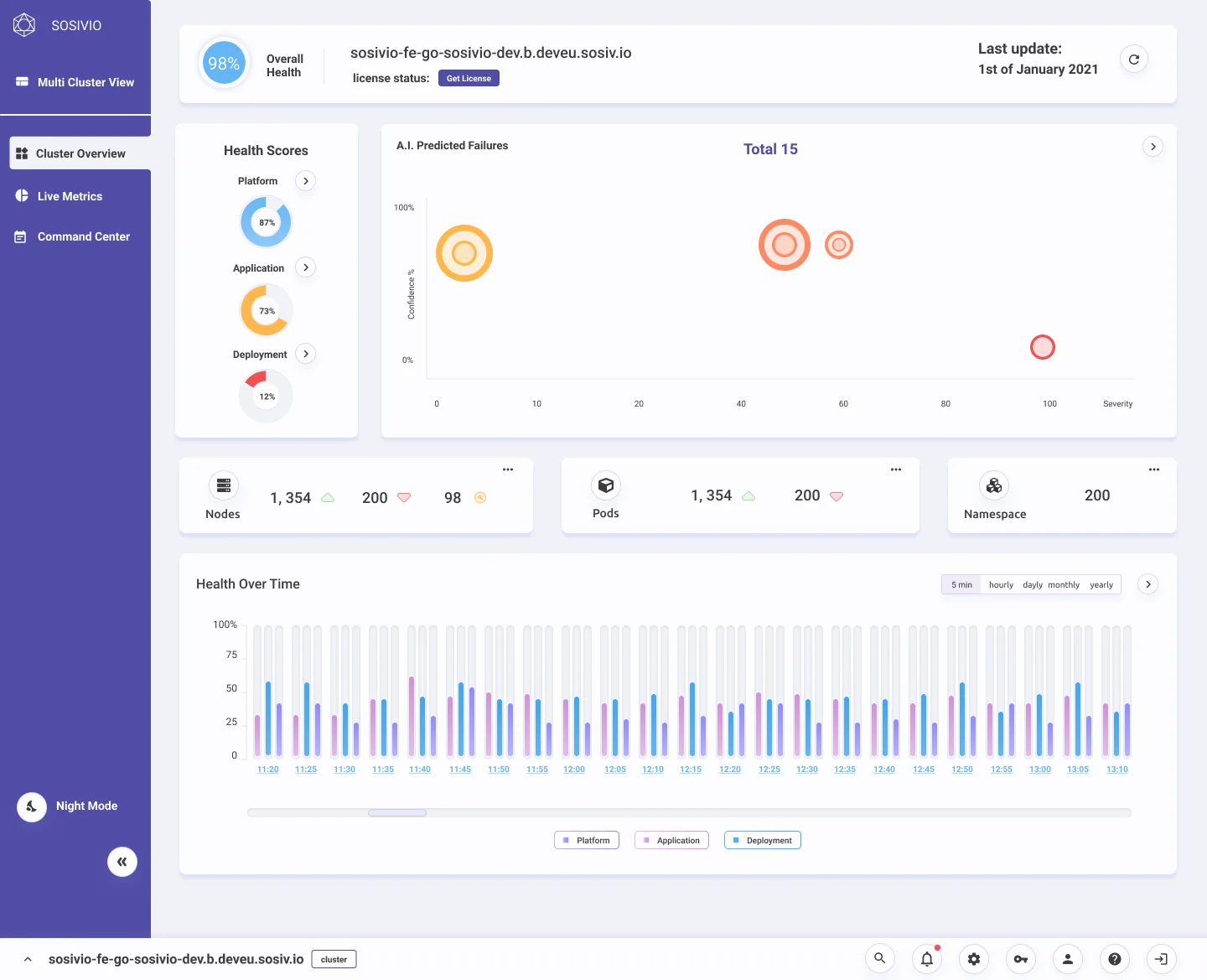
Starting point
Early Cluster overview: health scores as three donuts in a narrow left column, and the predicted failures chart squeezed beside them
Health donuts take a column; the chart gets what's left.
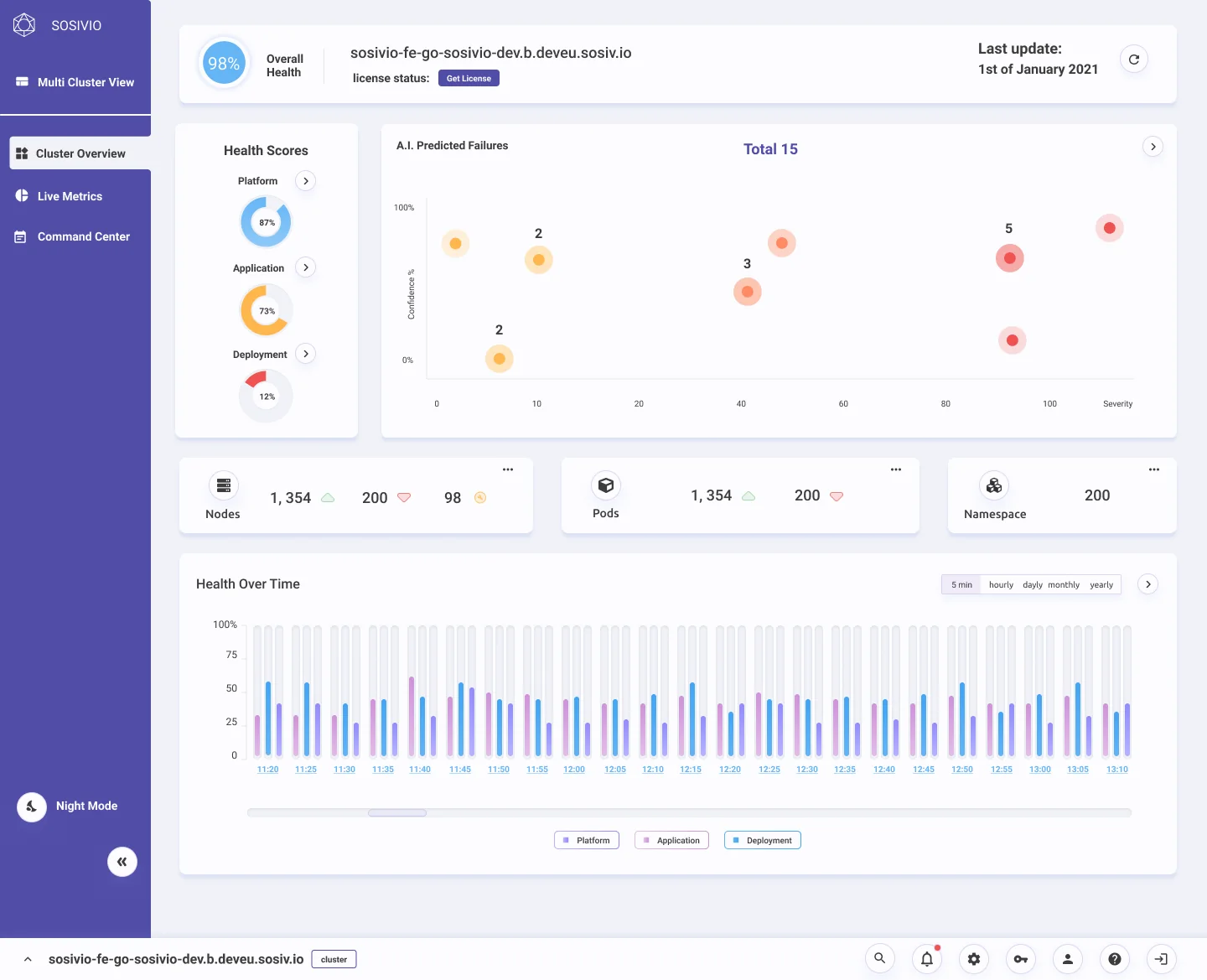
Exploration A
Prediction chart version with a number label on each group of overlapping predictions
A count on each group of overlapping predictions.
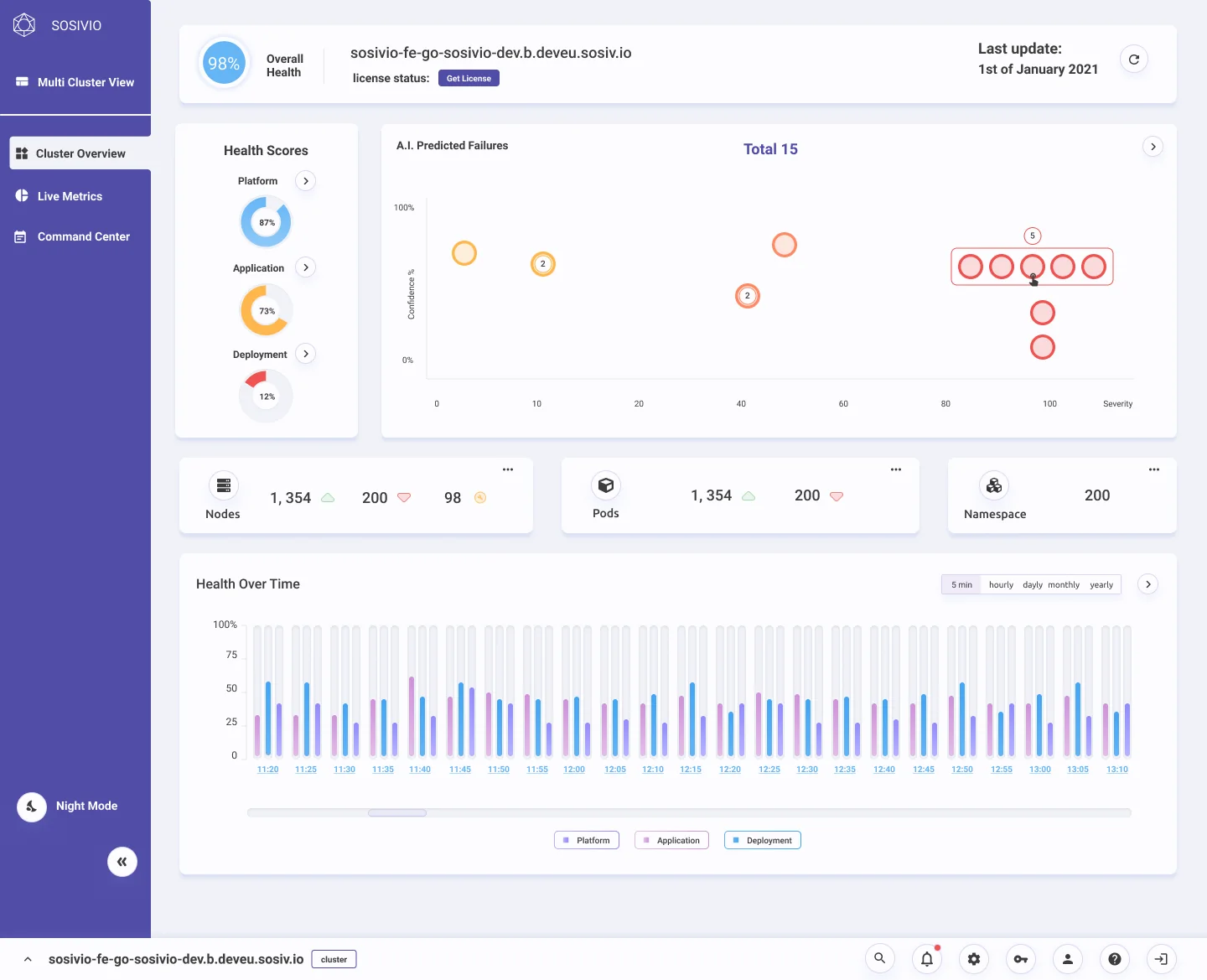
Exploration B
Prediction chart version where overlapping predictions are lined up inside one selectable box
Overlaps lined up inside one selectable group.
Exploration C
Prediction chart version where bubble size and rings show how many predictions are stacked
Bubble size and rings show how many are stacked.
Shipped
Shipped Cluster overview: health scores as a row of bars and a full-width predicted failures chart where each prediction has a halo and stacks vertically at its severity
Shipped. A full-width chart where predictions stack instead of overlapping, each with a halo you can click, and a small chart button to expand it.

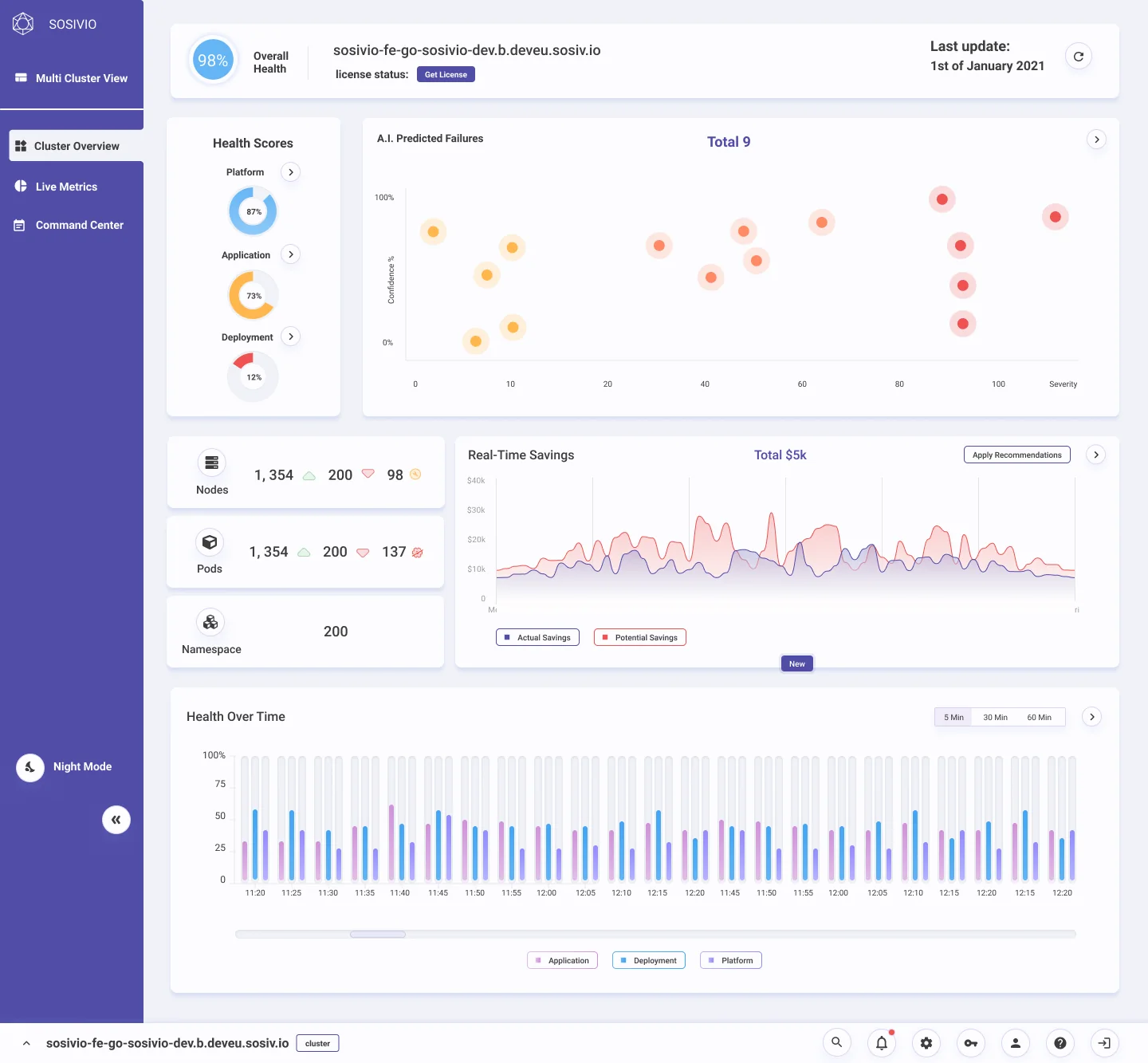
The same data that predicts failures also shows waste: pods asking for far more memory and CPU than they use. Budget puts a price on it.

  • Real-time savings on the cluster overview: what you could save now if you applied the recommendations.
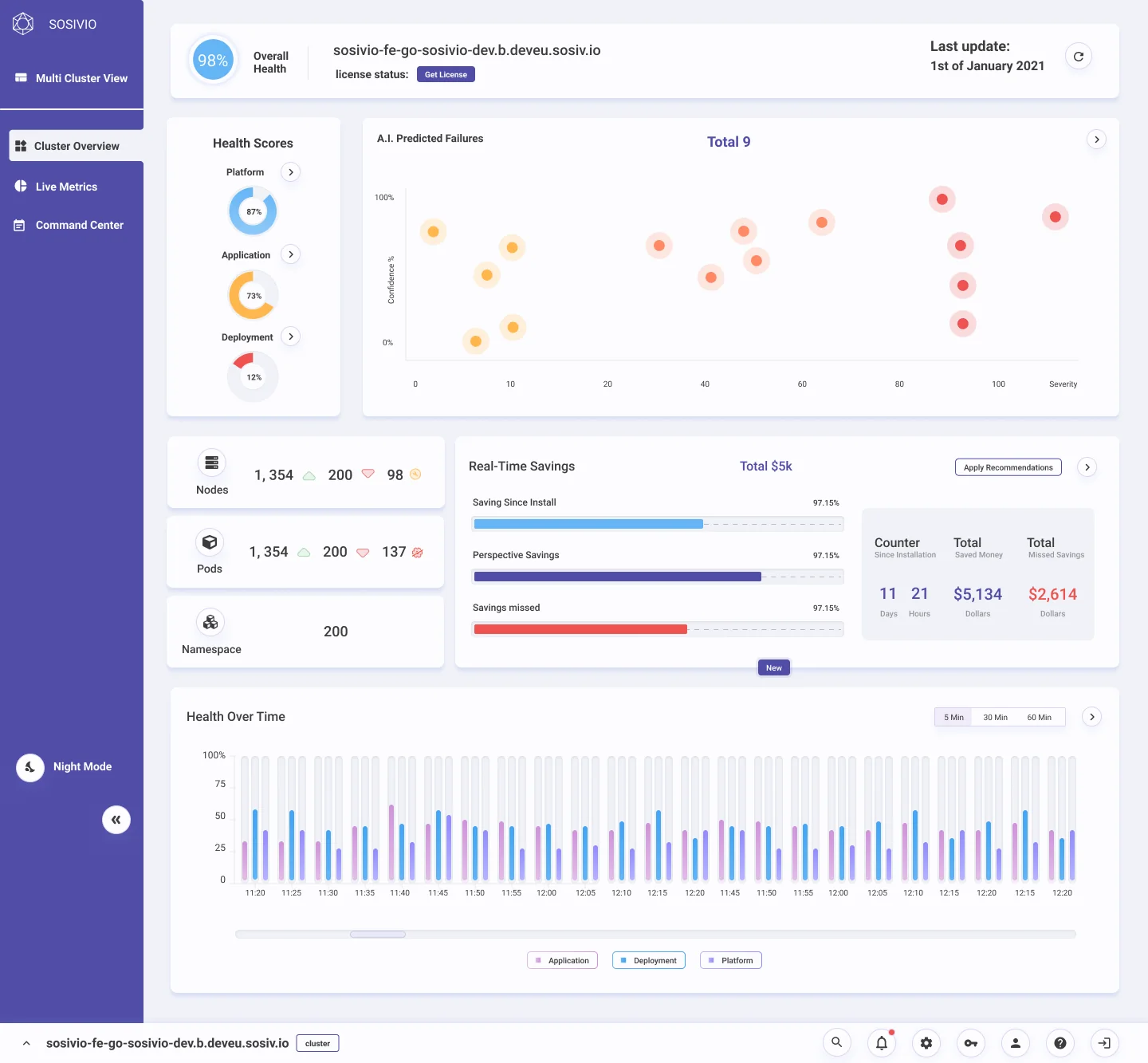
  • Savings so far: saved since install, potential savings and savings missed.
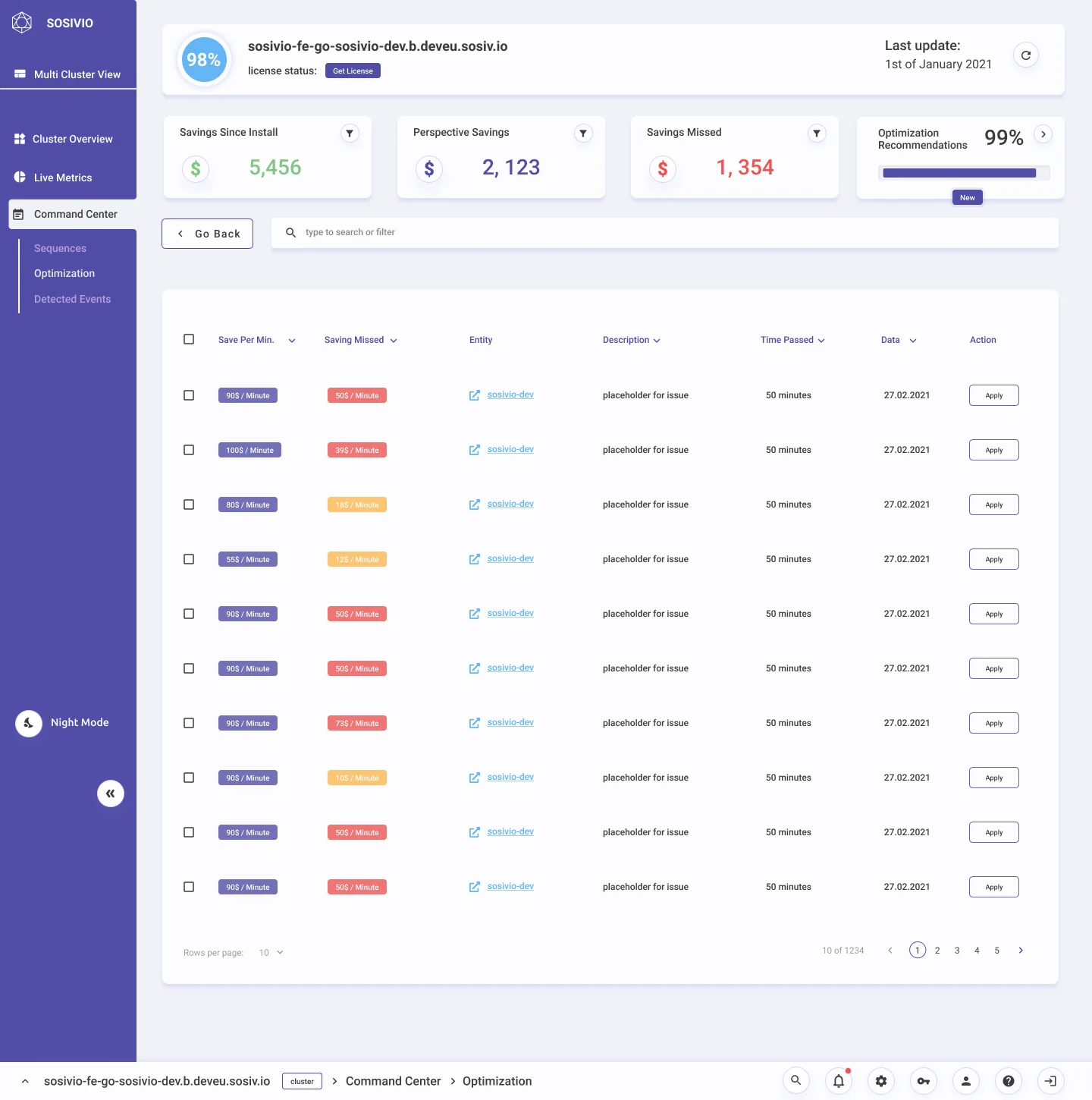
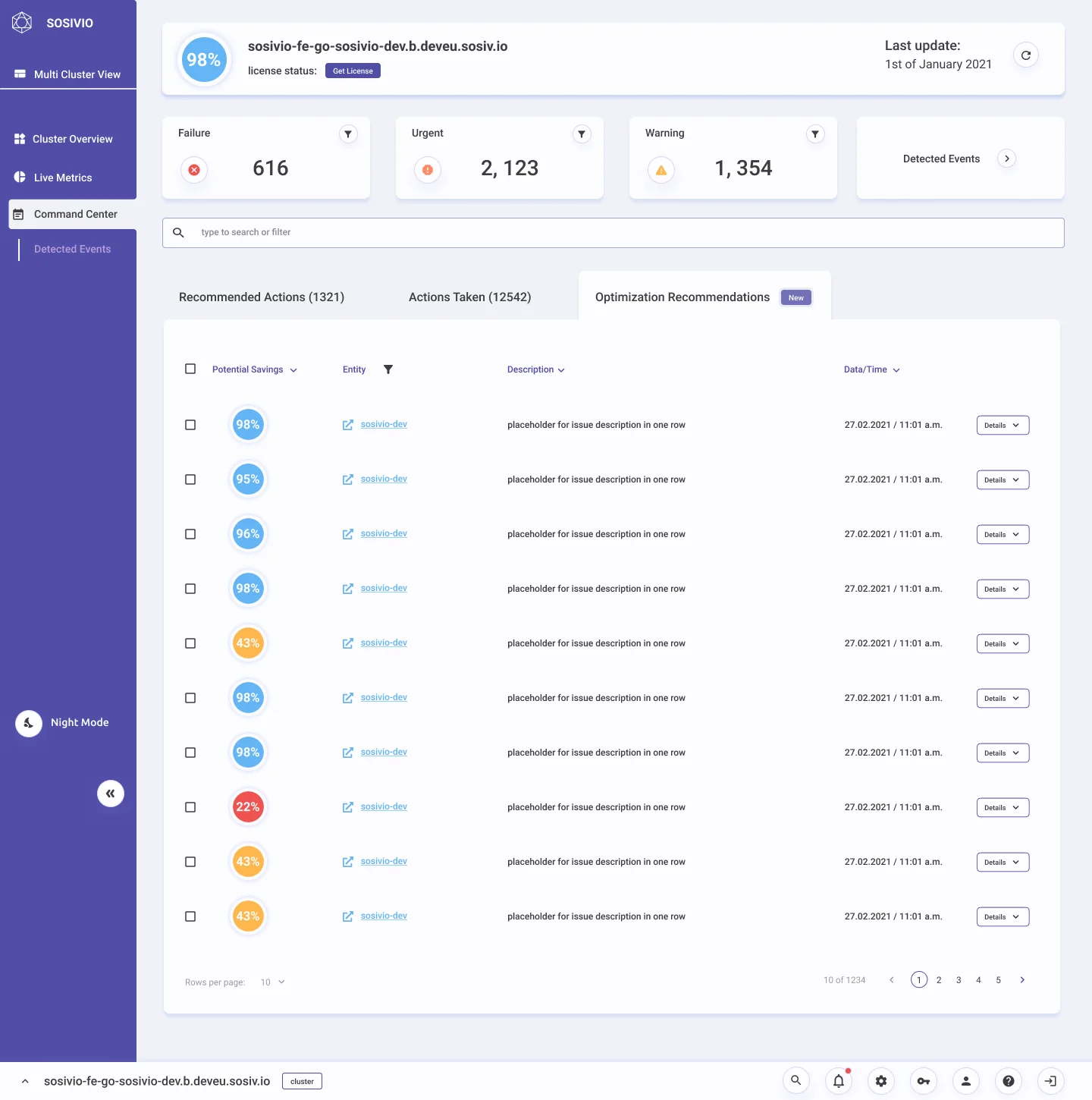
  • Optimisation recommendations as a third tab in Command center, each with its potential saving.
  • Per-item breakdown: money saved per minute and missed per minute, for each entity.
Cluster overview with a real-time savings area chart comparing actual and potential savings, total $5k, and an Apply recommendations button
Real-time savings sits next to cluster health, so cost becomes part of the daily check-in.
Savings card variant: bars for saving since install, potential savings and savings missed, with totals in dollars
Savings card, breakdown version.
Command center with an Optimisation recommendations tab listing entities with potential savings percentages
Optimisation tab in Command center.
Optimisation page: savings since install, potential savings and savings missed counters, and a table of money saved and missed per minute for each entity
Per entity: saved and missed.

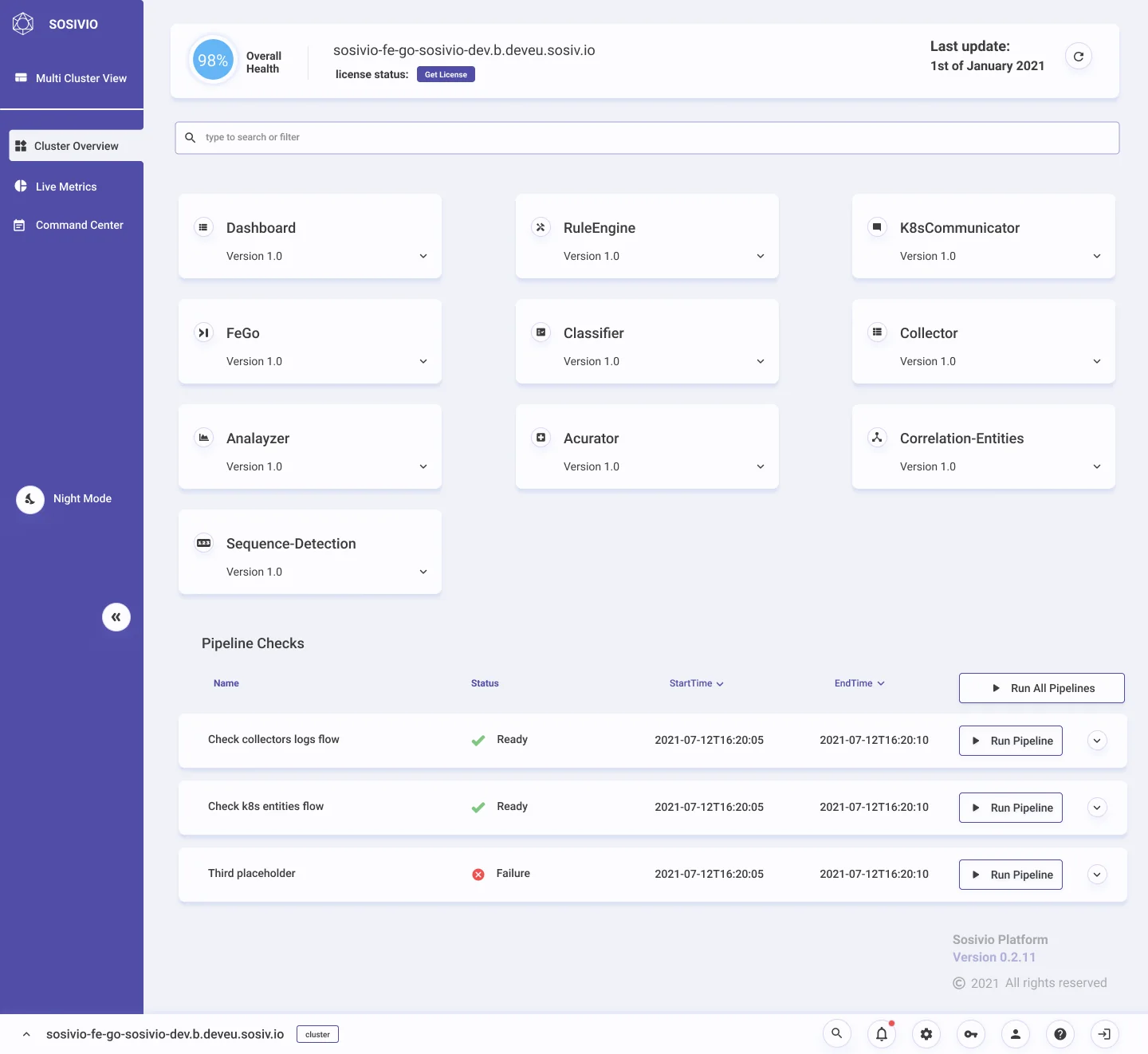
A monitoring tool has to prove it works. System version shows every Sosivio component, and pipeline checks test that data really flows through them.

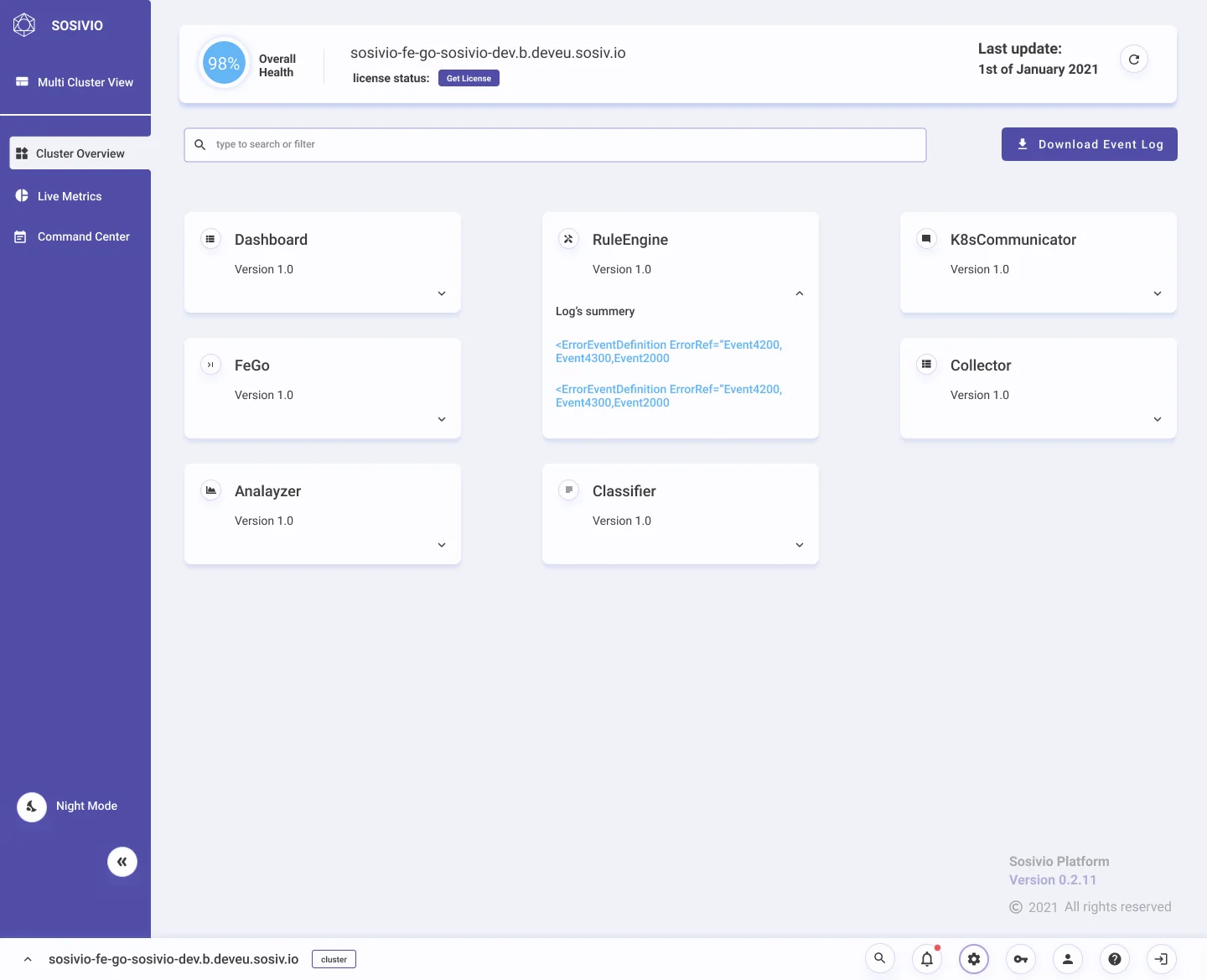
  • Component cards with versions and expandable log summaries.
  • Pipeline checks that can be run one by one or all at once, with ready or failure status.
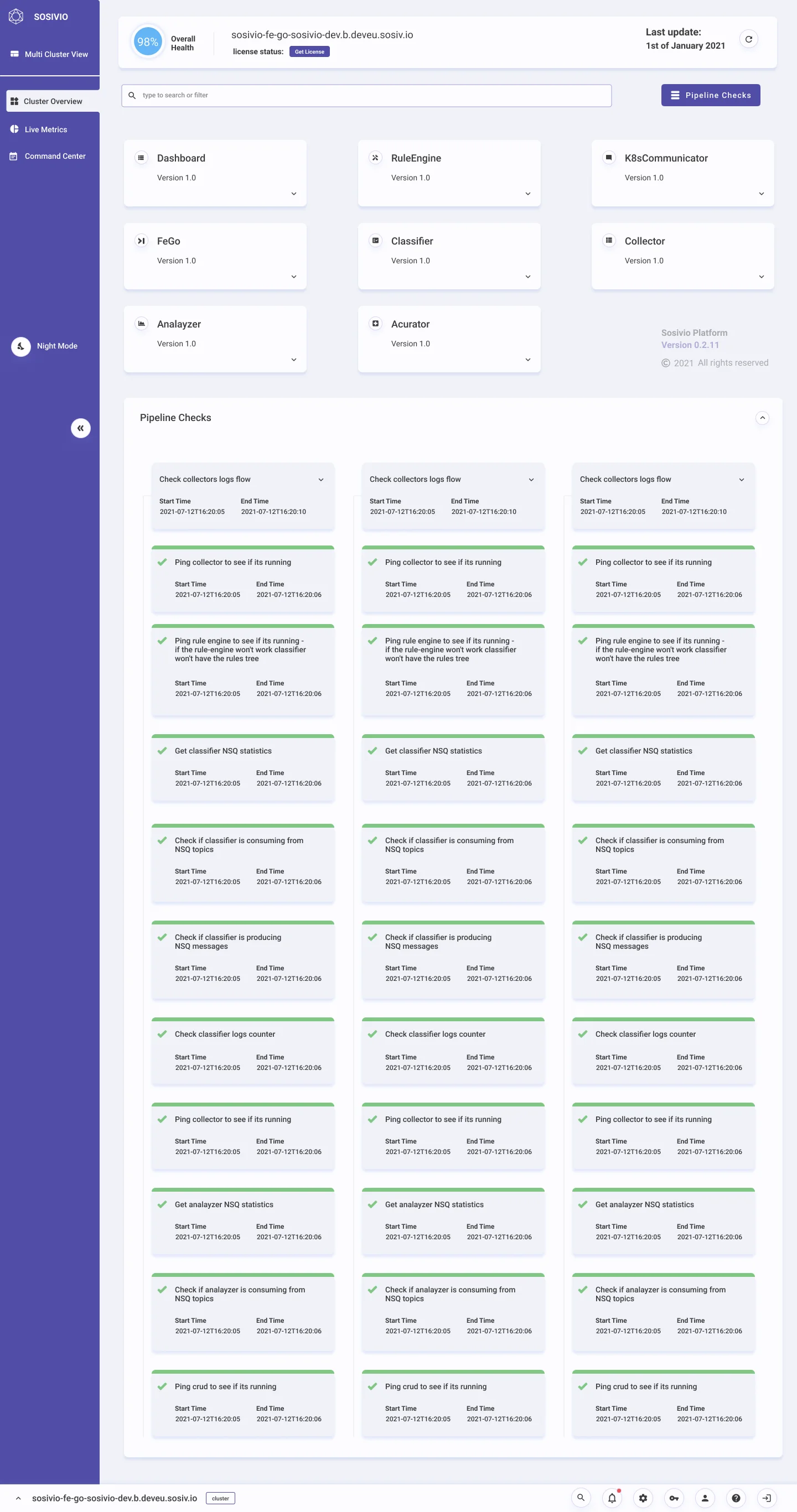
  • Results board with every step's start and end time.
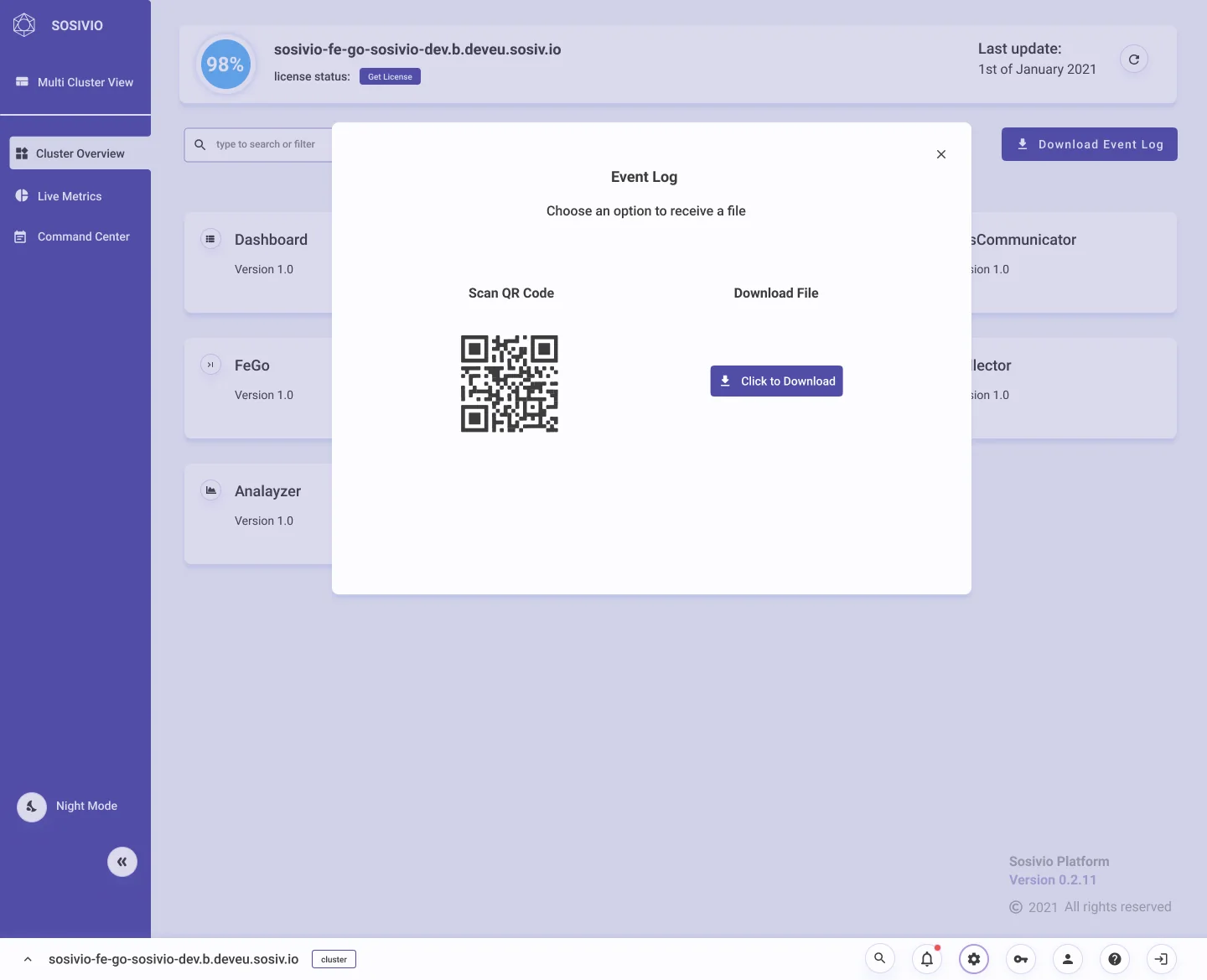
  • Event log export by file or QR code, for support.
System version: cards for each Sosivio component with its version, and a pipeline checks table with Ready and Failure statuses and Run pipeline buttons
System version with pipeline checks.
Pipeline results board: a grid of check cards, each with a green or red status bar and start and end times
Pipeline results. Every step, with timing.
A component card expanded to show its logs summary
Logs summary inside a component card.
Event log dialog with two options: scan a QR code or download a file
Event log export by QR code or file.

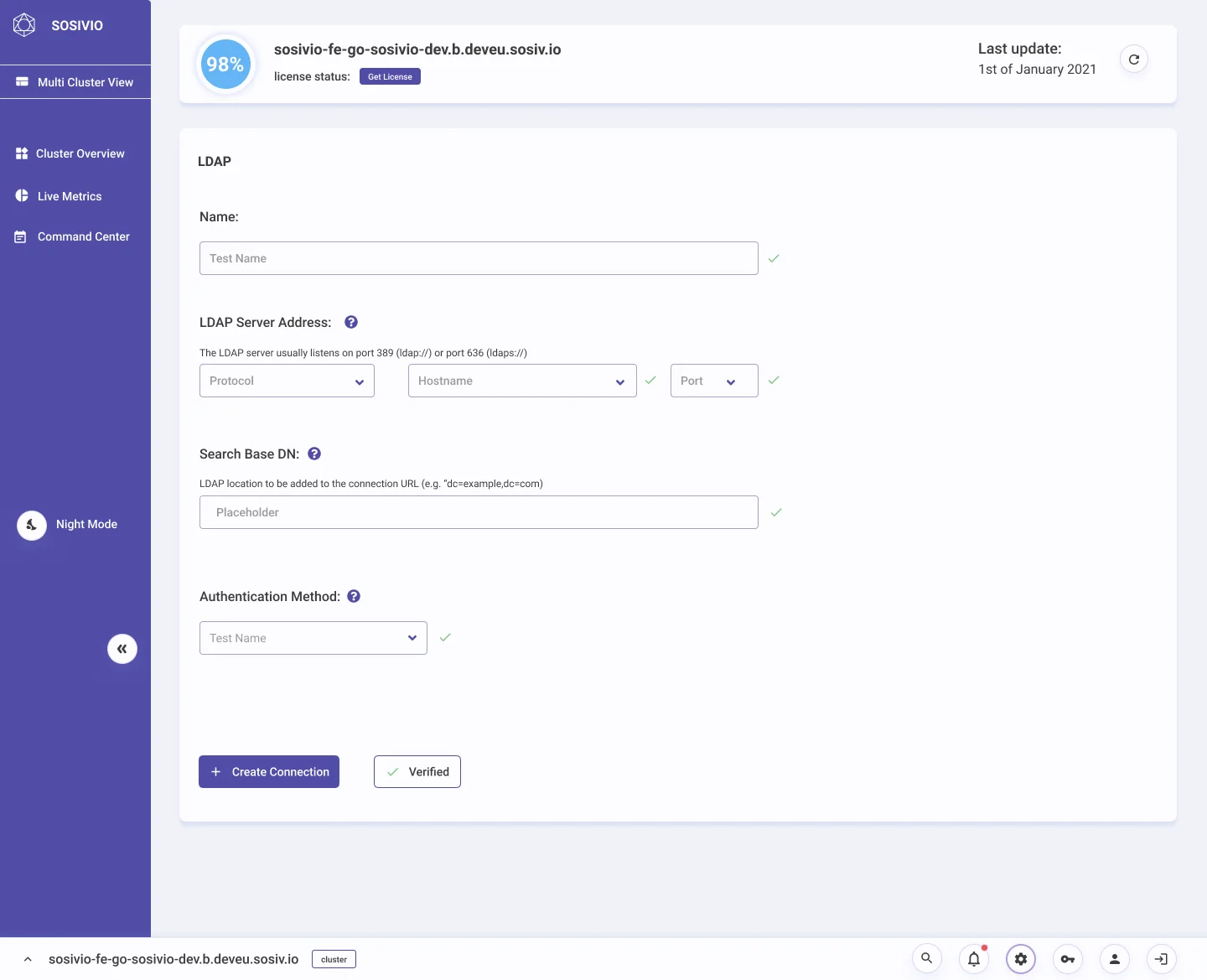
Nobody buys a platform for its settings, but a company can't roll it out without them. I gave these flows the same care as the dashboards: clear roles, a way to check settings before saving, and a clear success state.

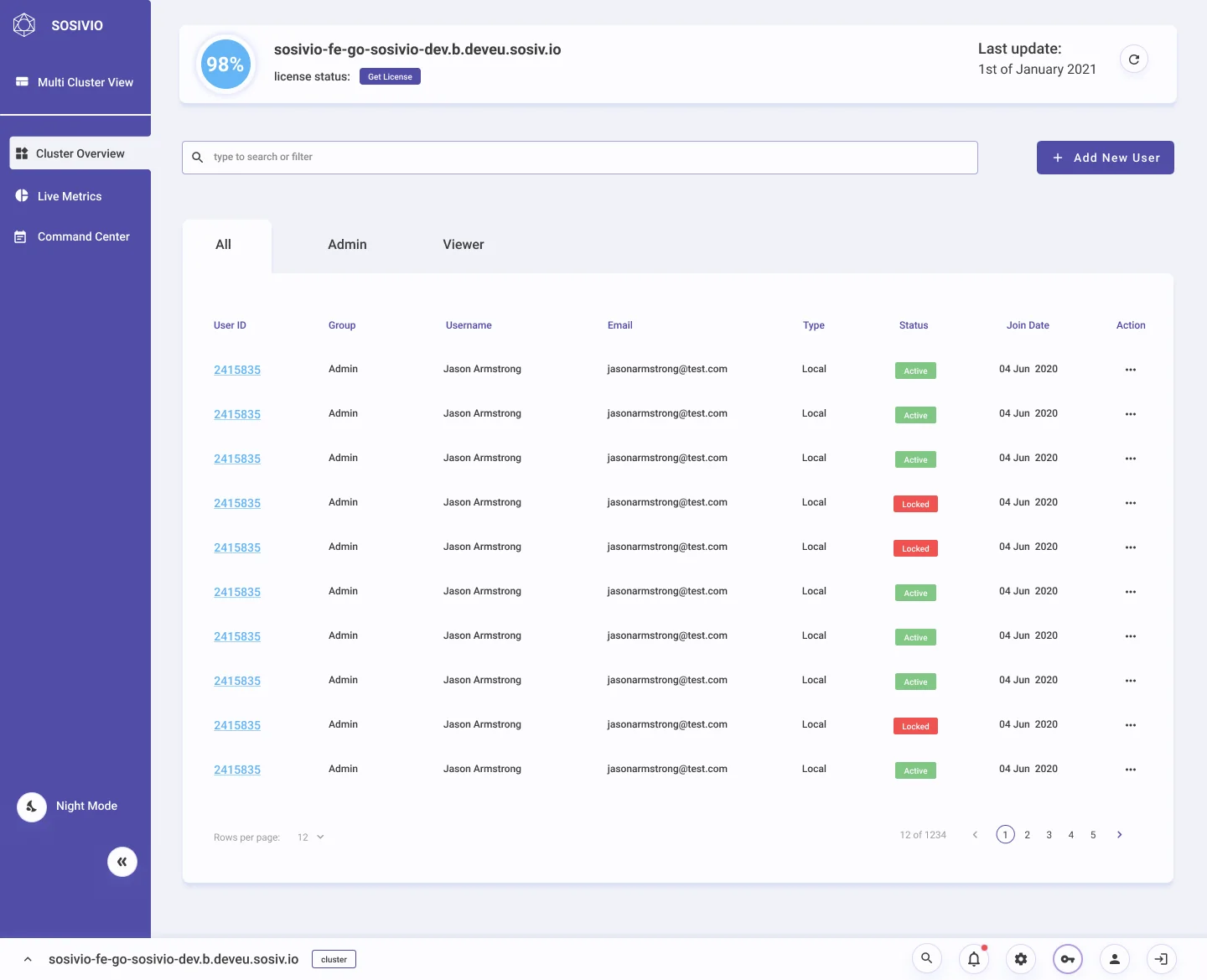
Users table with tabs for all, admin and viewer, and active or locked status for each user
Users. Roles as tabs, status per user.
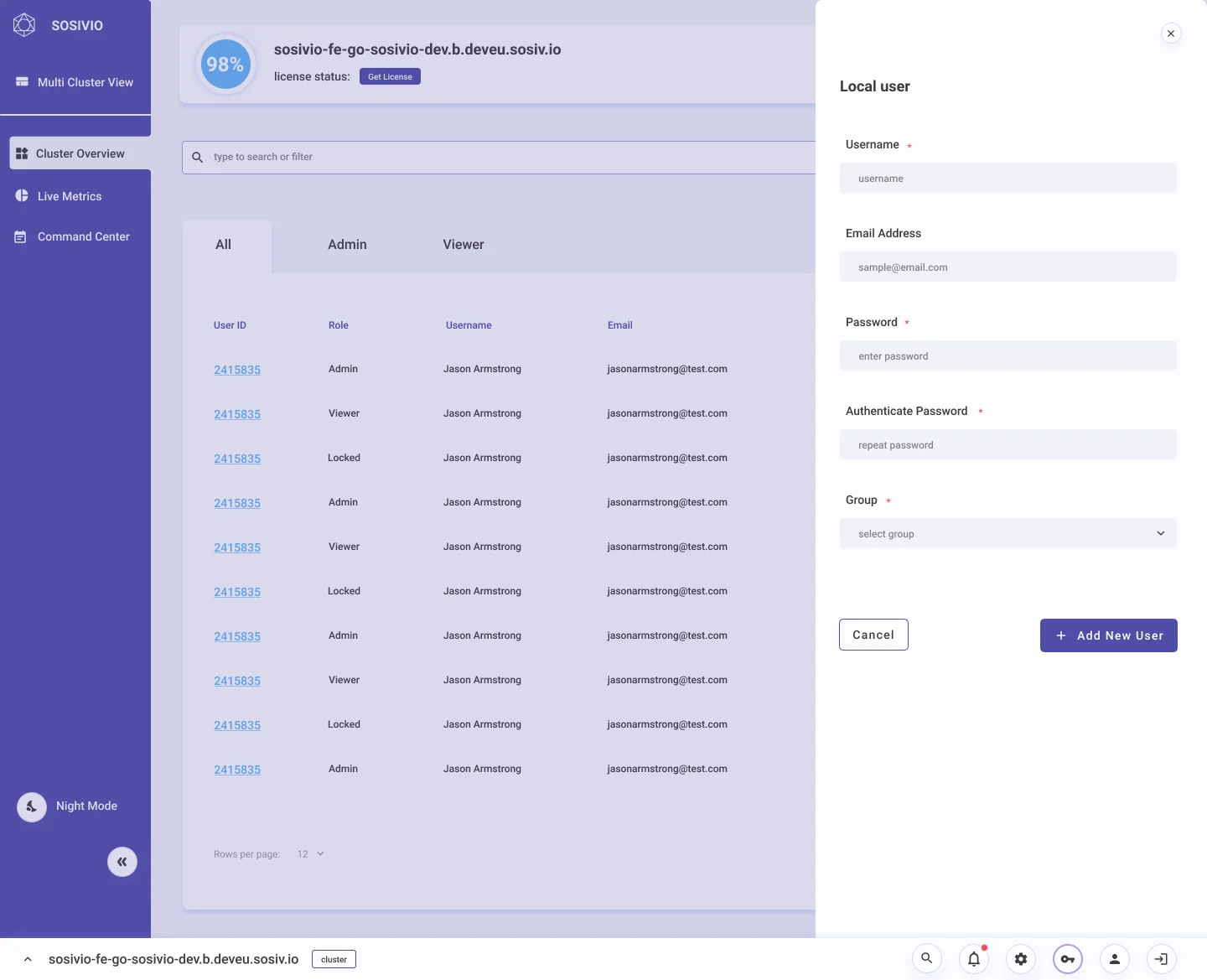
Add user side panel with username, email, password, password confirmation and group fields
Add user. A side panel keeps the list.
LDAP connection form with every field validated and the Verify configuration button showing Verified
LDAP. Verify before you create.
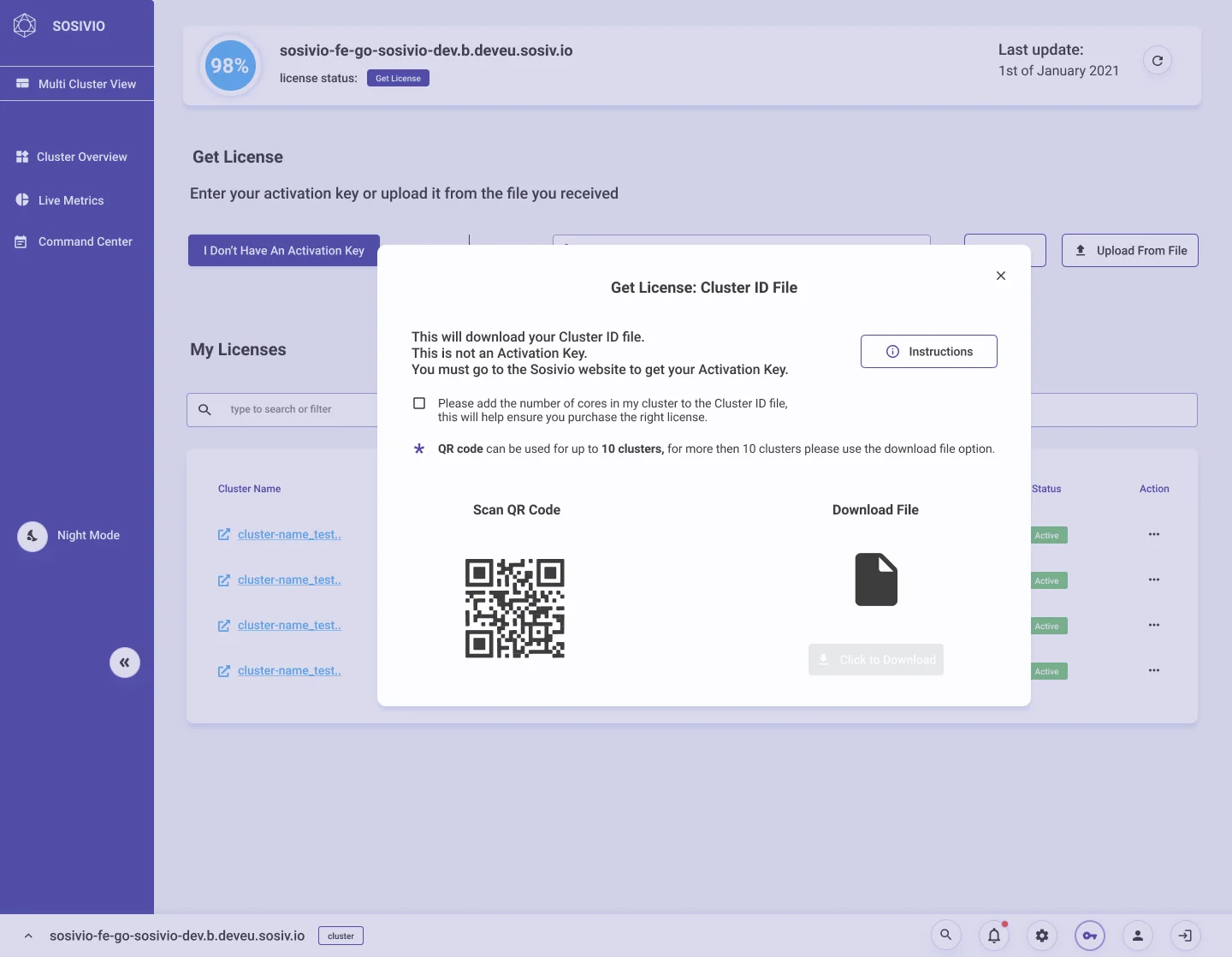
Get licence dialog: download the cluster ID file by QR code or as a file
Licences. Activation works by QR code or file.
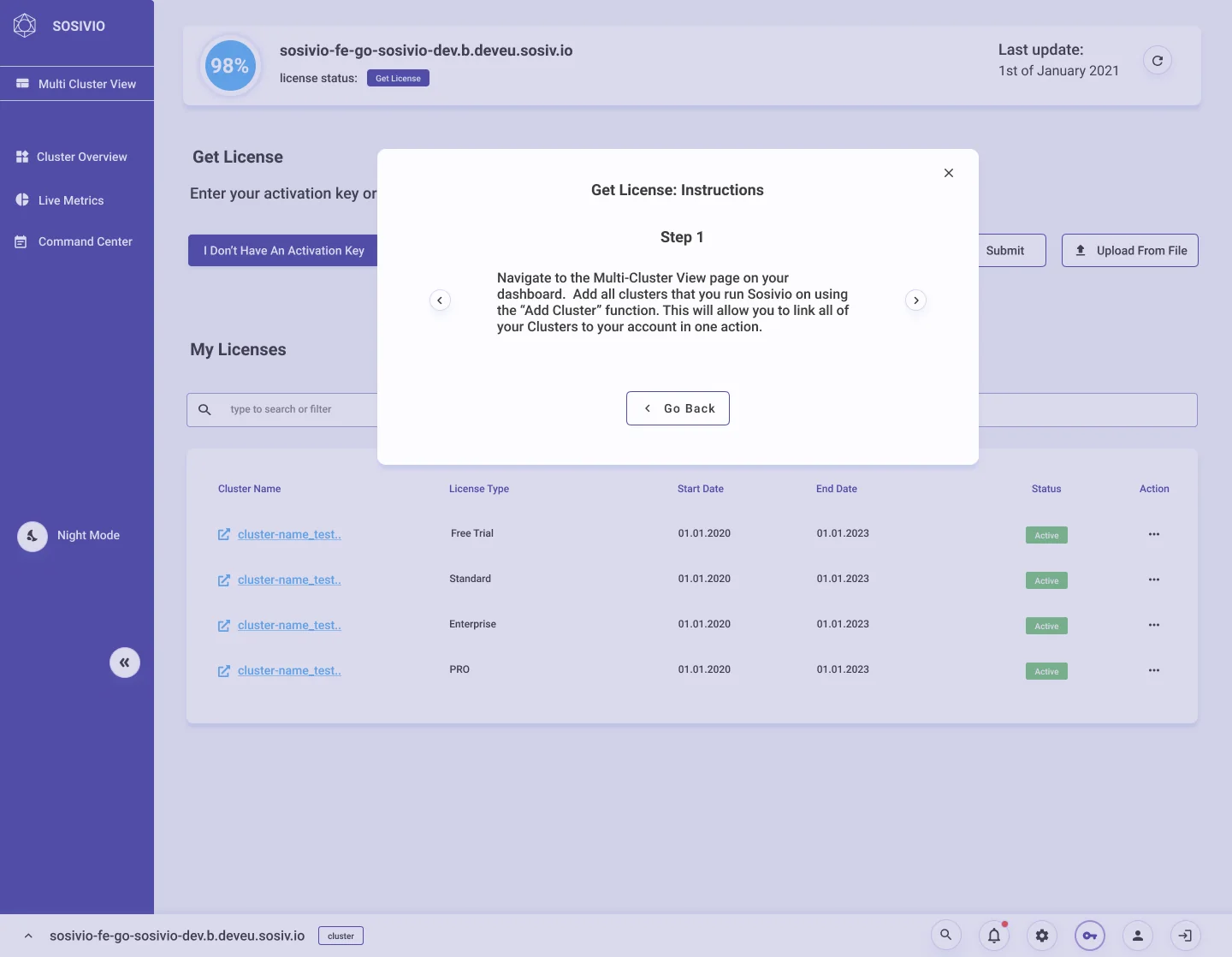
Get licence instructions dialog, step 1 of a guided flow
Guided activation for the first licence.

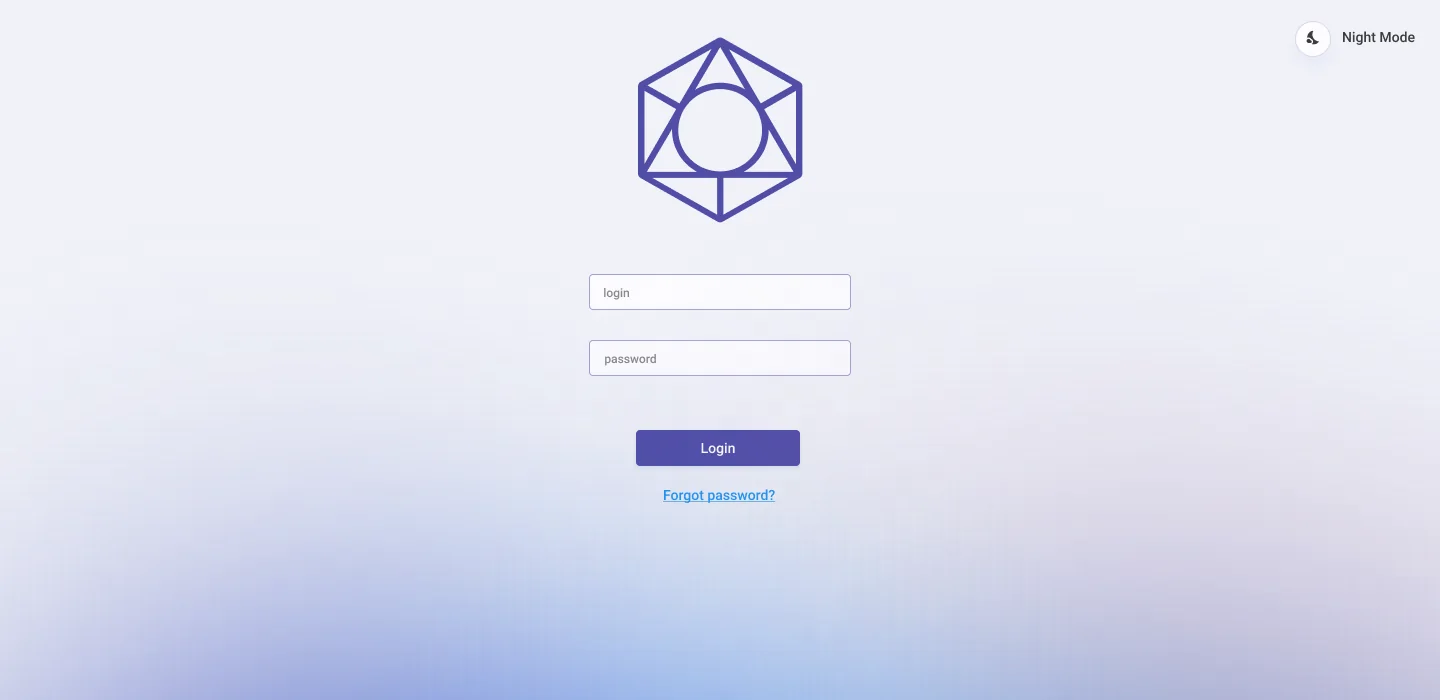
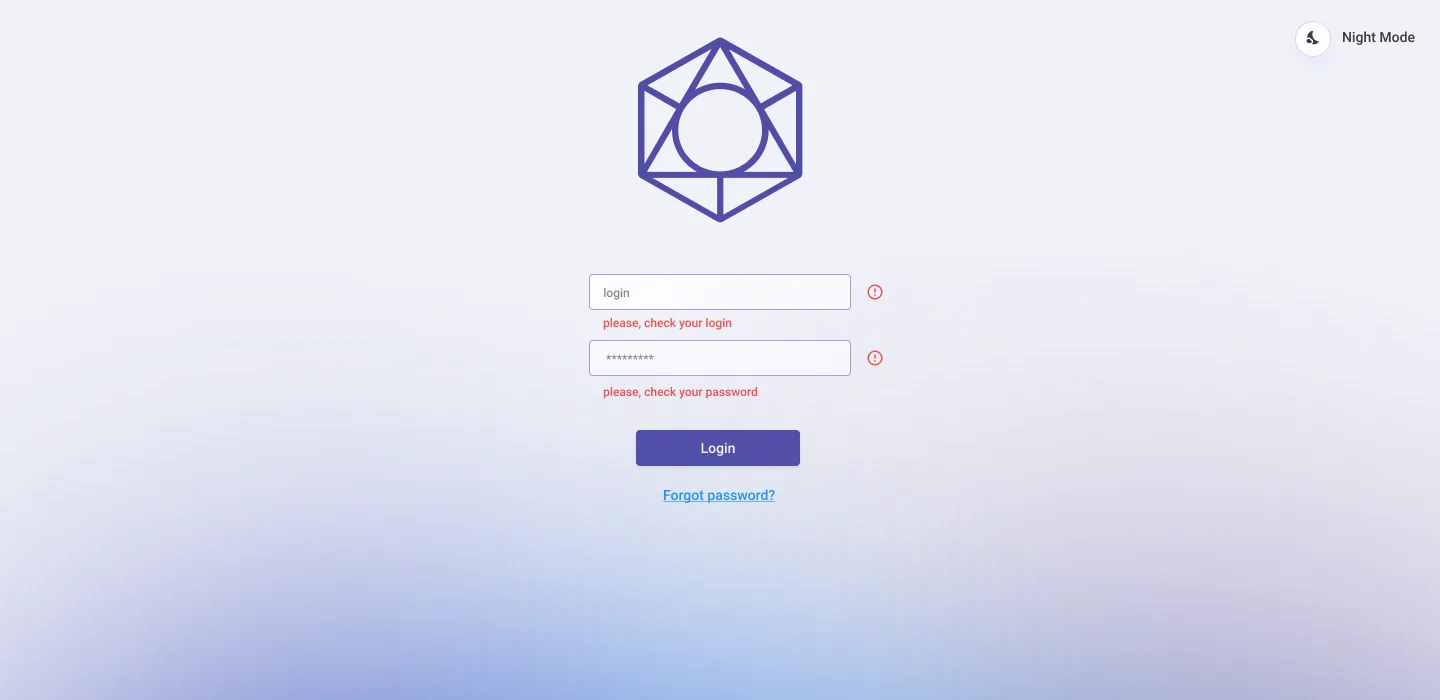
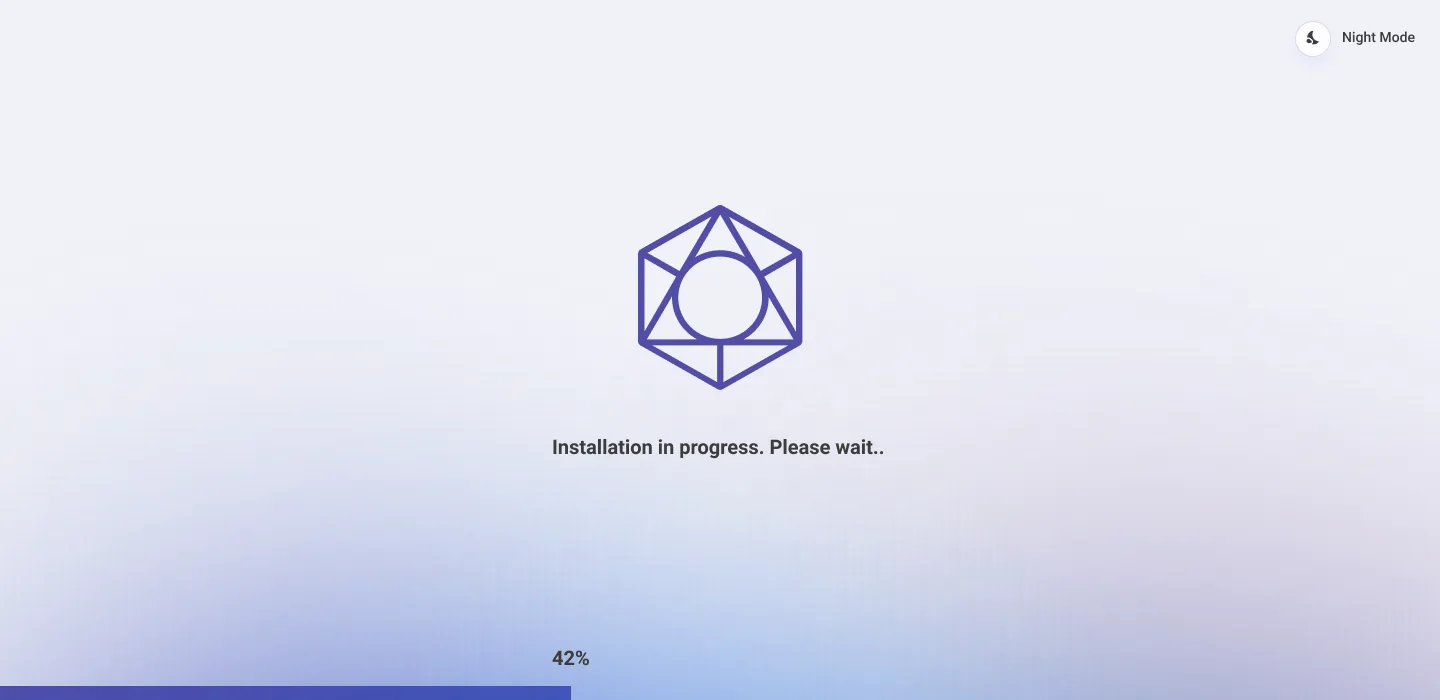
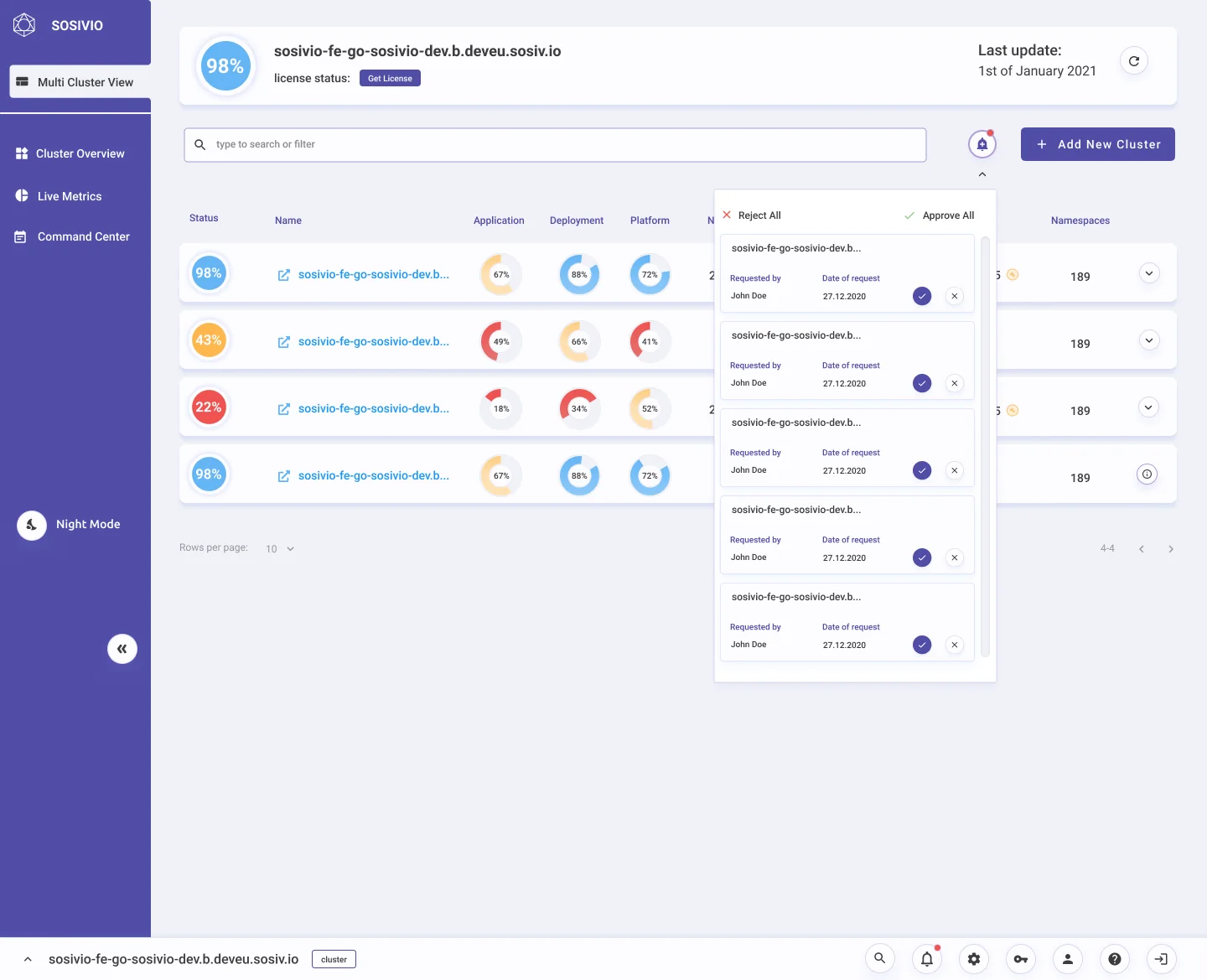
A monitoring tool is used on bad days. I designed the moments in between too: first install, wrong password, a request waiting for approval, a destructive action, and errors.

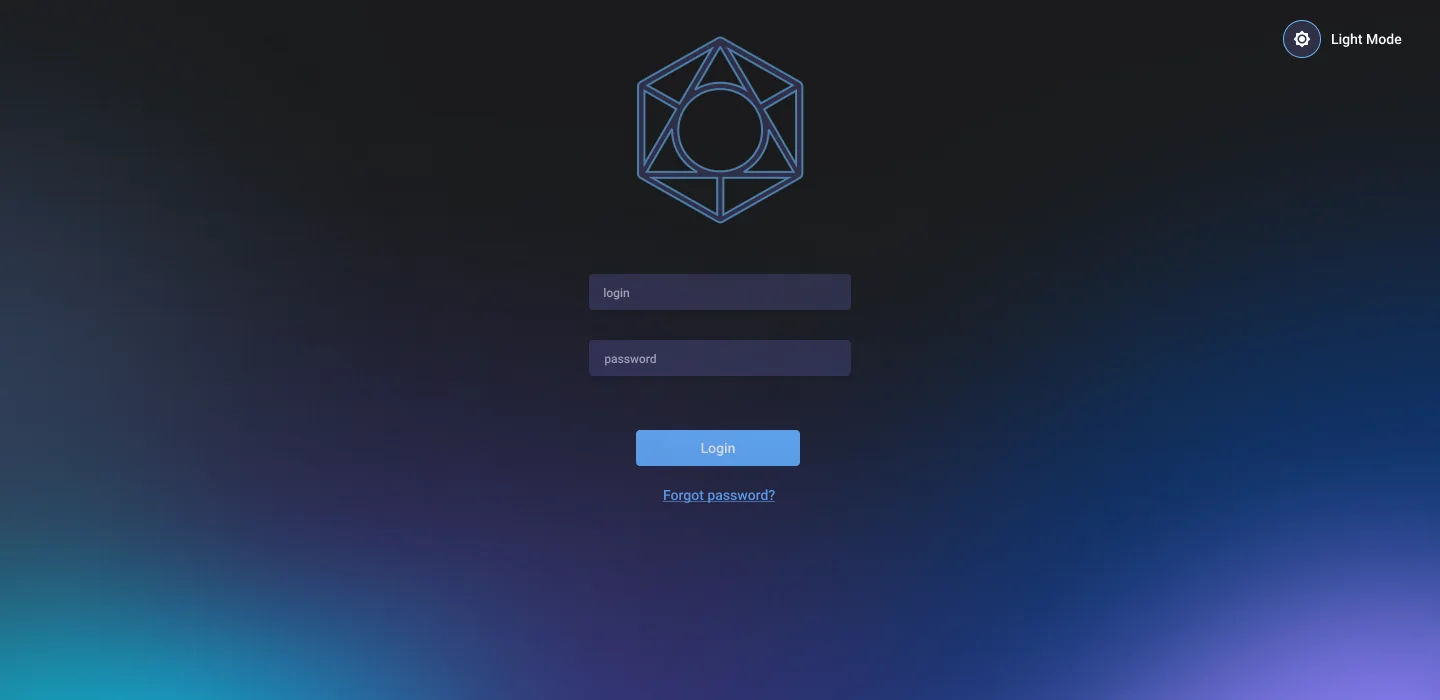
Login screen, light theme
Login, light theme.
Login screen, dark theme
Login, dark theme.
Login screen with error messages under the username and password fields
Field errors under each input.
Installation in progress screen with a progress bar
First run: installation progress.
Multi-cluster view with a panel of cluster requests waiting for approval, with approve and reject actions
Approval. Admins approve clusters.
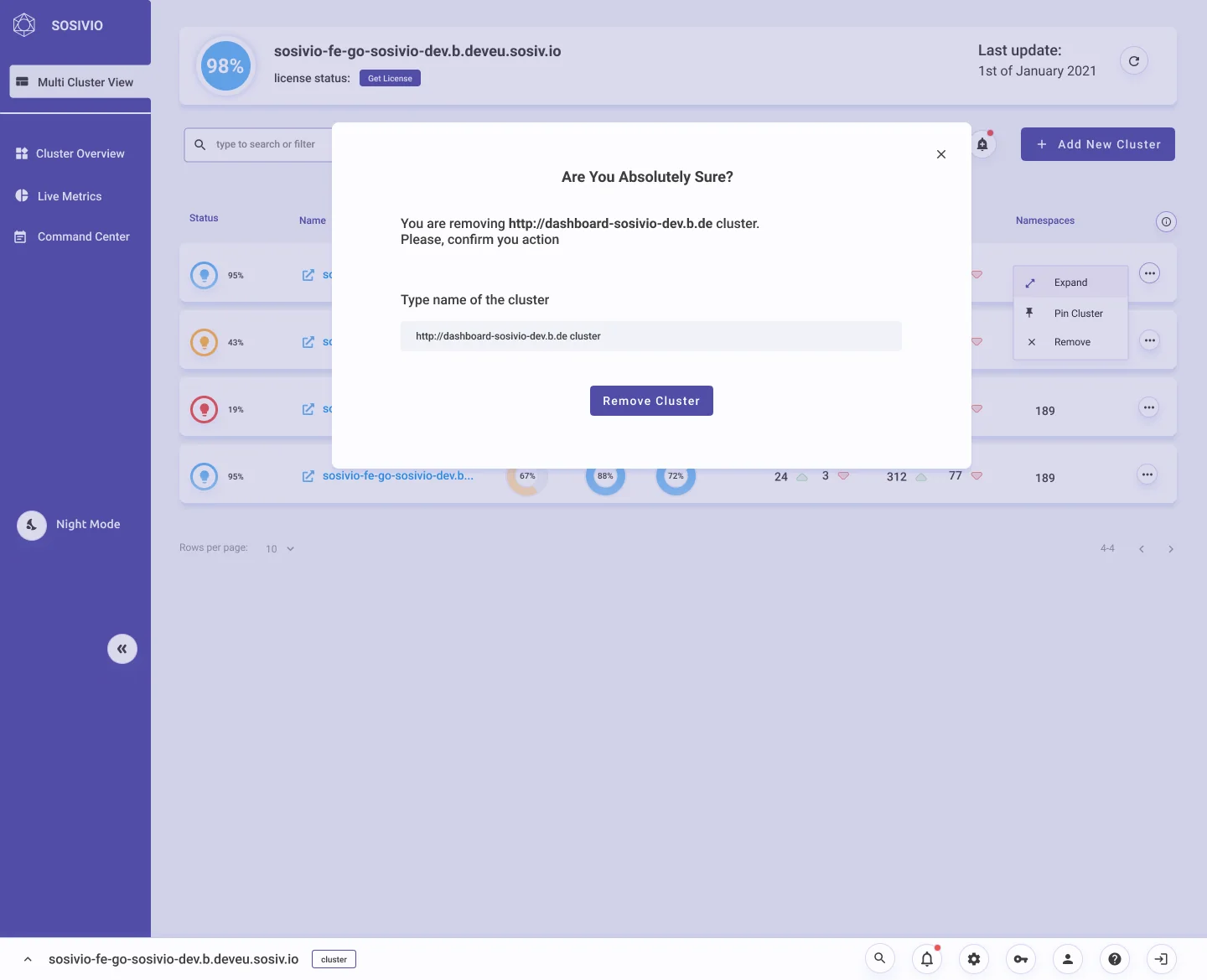
Remove cluster confirmation asking the user to type the cluster's name before removing it
Remove. Type the name to confirm.
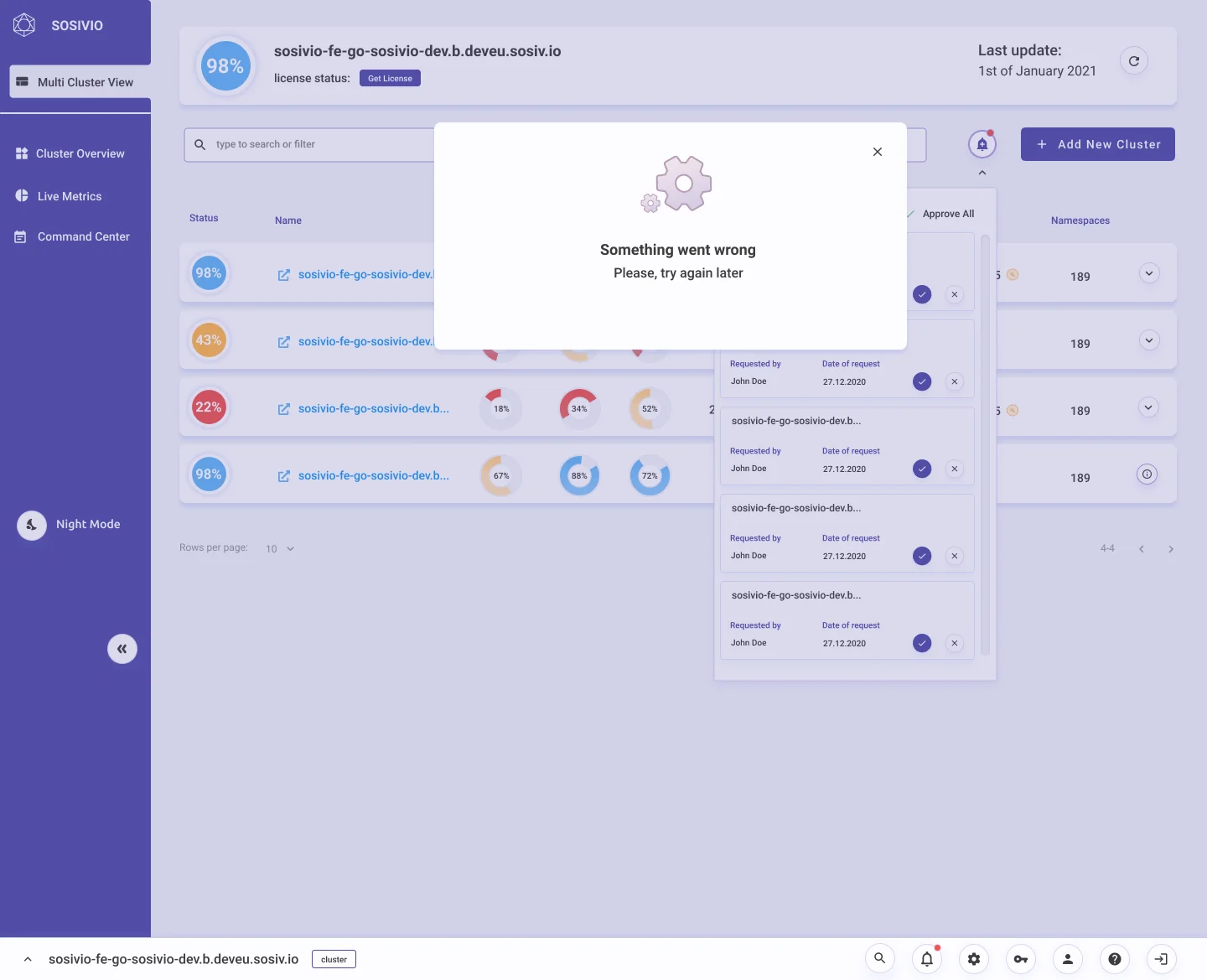
Error dialog: Something went wrong, please try again later
Errors. What happened, what to do.

One rule runs the whole product: colour means health. The same three thresholds drive every score, gauge and chart.

Light and dark were designed side by side, not converted at the end, so each colour keeps its meaning in both. Brand purple stays in the chrome, so it never competes with health colours.

Healthy81–100%
Warning51–80%
Critical0–50%
Cluster overview in the light theme
Light. Cluster overview.
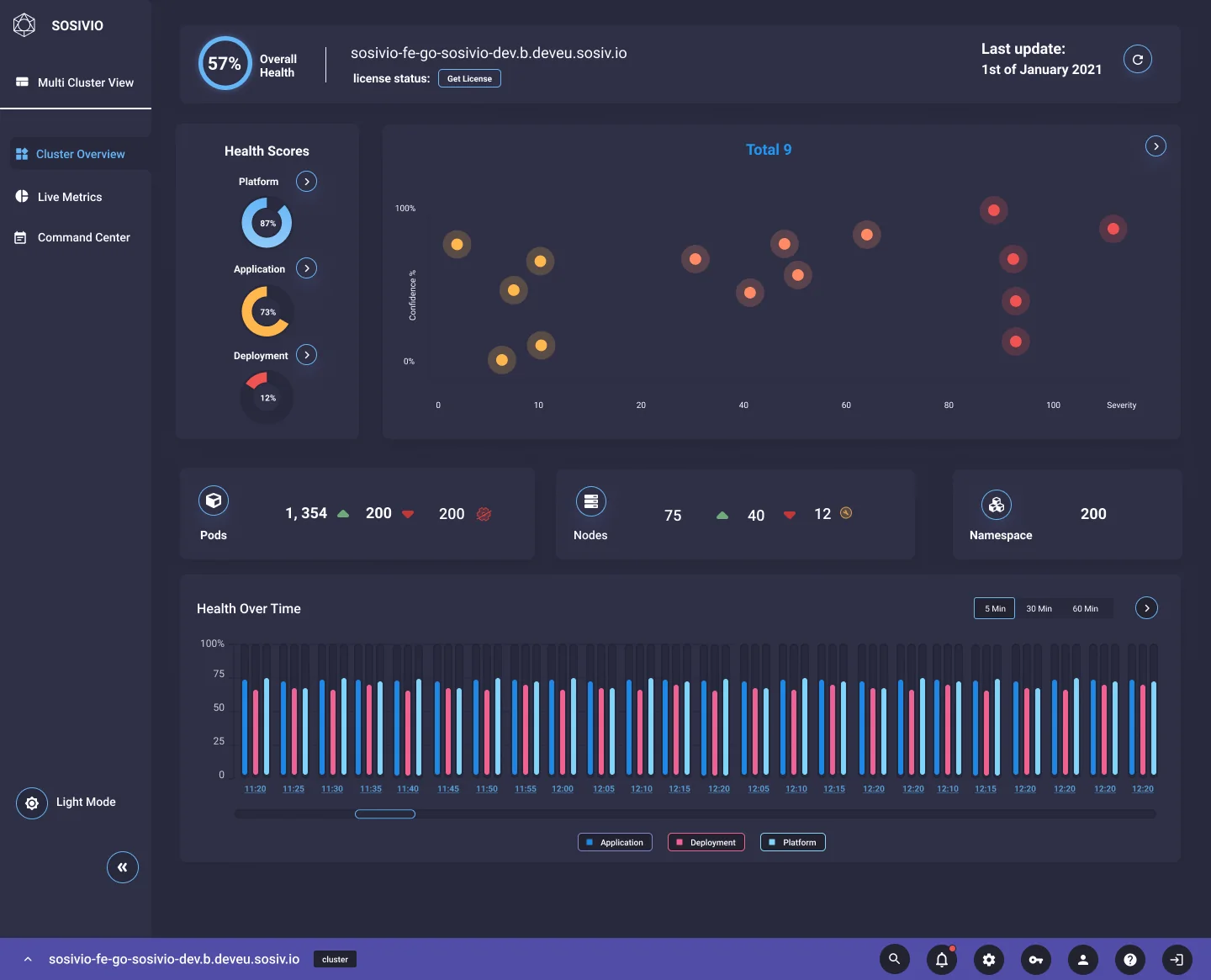
The same cluster overview in the dark theme
Dark. Same screen, same meaning.
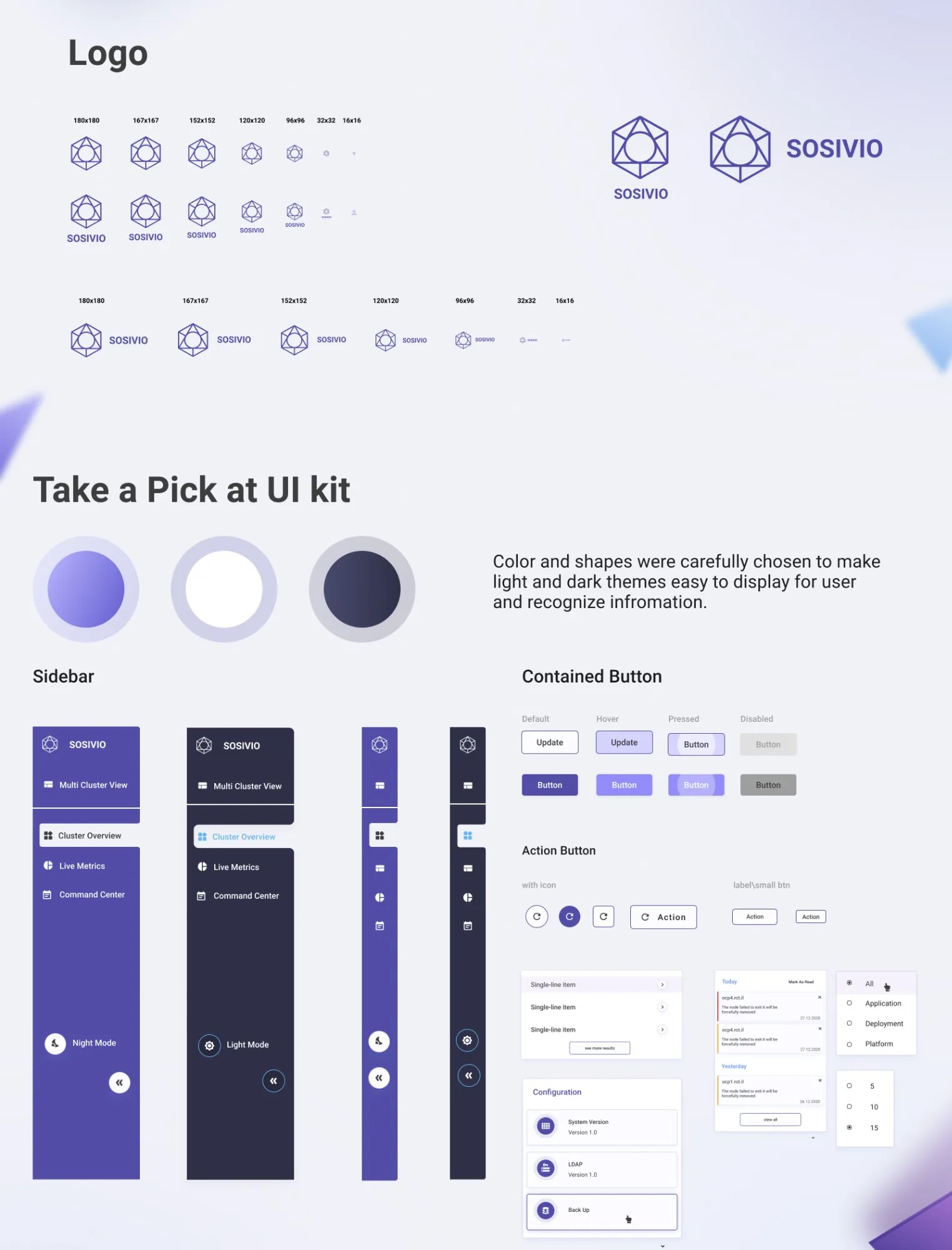
Logo in every size from 180 to 16 pixels, and a UI kit overview: sidebar in four states, contained and action buttons in every state, list items, notifications and configuration cards
Logo and UI kit. The logo works from 180 down to 16 pixels; components come in every state and both themes.

A walkthrough of the live product: cluster overview, live metrics and command center.

Designing for experts means organising, not simplifying. DevOps engineers don't want less information; they want the right information in the right order. Hierarchy and density work together.
Design both themes from day one. Converting one theme into the other always leaves compromises. Colour meaning has to hold in both at once.
A design system is a product decision. Every component choice shapes what can be built next. The more deliberate the system, the faster the team moves.
What I'd do differently today: test the prediction chart with on-call engineers earlier, with real data, instead of exploring overlaps on mock data. And pair every health colour with a shape or label from the start, so status never relies on colour alone.